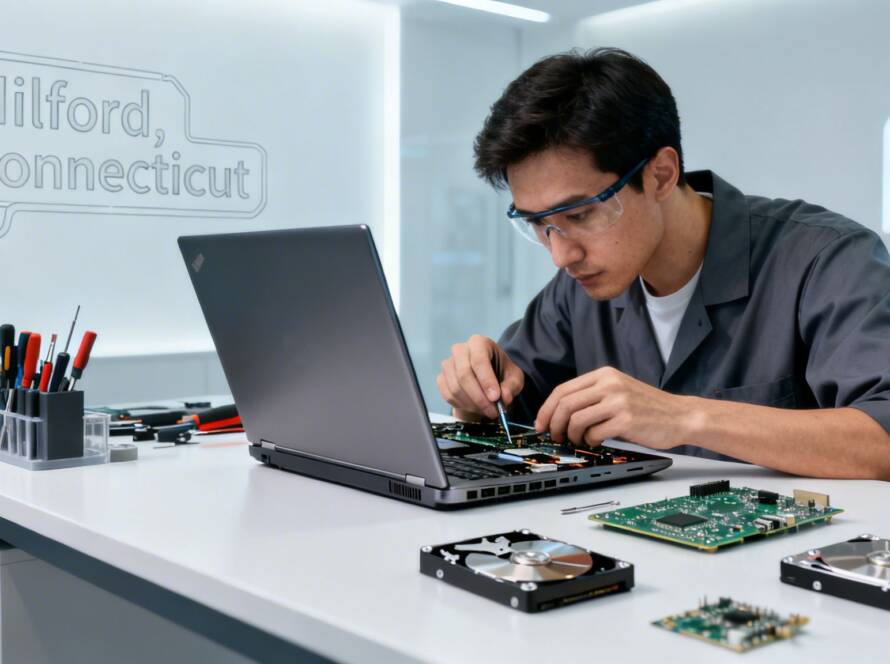


Here’s the thing: the core difference between a Solid-State Drive (SSD) and a Hard Disk Drive (HDD) boils down to how they work. An SSD uses flash memory to give you nearly instant access to your data, while an HDD relies on old-school spinning platters. This makes SSDs worlds faster and tougher, but HDDs still win when it comes to getting a ton of storage space on a budget.
For a professional, that speed difference isn't just a number—it’s time you get back in your day, no longer spent waiting for programs to load.
A Direct Comparison of SSD vs HDD
Picking the right storage drive is one of the biggest upgrades you can make for your computer's overall performance. It doesn’t matter if you're a small business owner here in Connecticut, a lawyer juggling massive case files, or just want a snappier computer at home—getting the SSD vs. HDD choice right is key. It directly impacts everything from how fast your computer boots up to how quickly your applications respond.
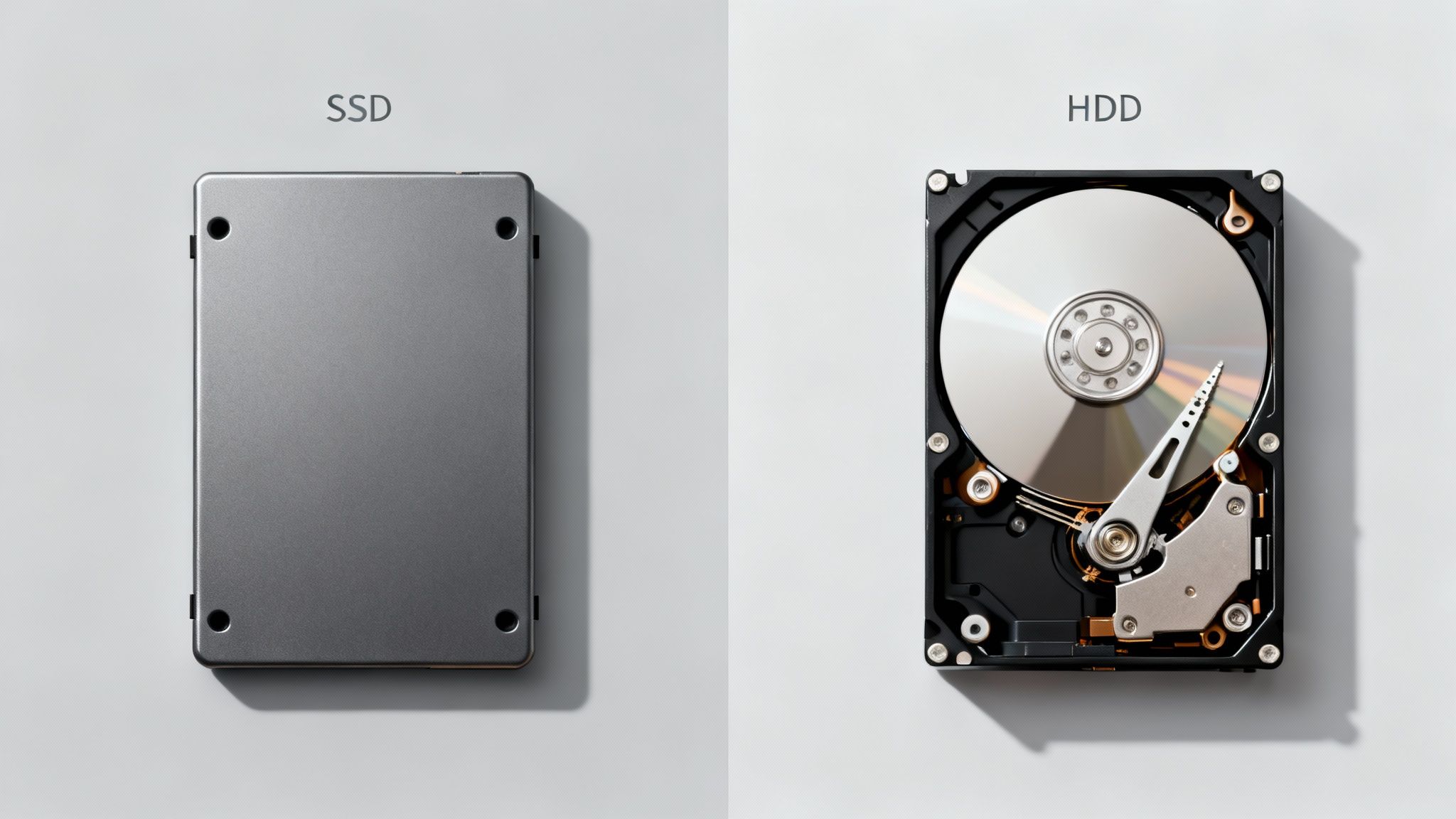
A good way to think about an HDD is like a tiny, high-tech record player. It has a physical arm that has to move across a spinning disk to find and read your data. That physical movement, however small, creates a delay every single time you open a file. It’s a reliable and cheap way to store huge amounts of data, especially for files you don't need to get to in a split second.
An SSD, by contrast, is a completely different beast. It has zero moving parts and works more like a giant USB flash drive, storing information on interconnected memory chips. Since there’s no mechanical arm to move, data access is practically instantaneous. This design not only makes it incredibly fast but also far more durable. You can bump or even drop a laptop with an SSD, and it's much more likely to survive unscathed—a huge plus for anyone on the go.
Key Differences At a Glance
To make the choice a bit clearer, let's lay out the fundamental differences side-by-side. This table gives you a quick snapshot of what really separates these two technologies.
| Attribute | Solid-State Drive (SSD) | Hard Disk Drive (HDD) |
|---|---|---|
| Technology | Uses NAND flash memory chips with no moving parts. | Uses spinning magnetic platters and a moving read/write head. |
| Performance | Exceptionally fast boot times, file transfers, and application loading. | Slower due to mechanical movement and data seek times. |
| Durability | Highly resistant to physical shock, drops, and vibrations. | More vulnerable to damage from impact due to moving parts. |
| Cost | Higher cost per gigabyte, but prices are becoming more competitive. | Lower cost per gigabyte, offering more storage for the price. |
| Ideal Use Case | Operating systems, frequently used applications, and performance-critical files. | Mass storage, data archives, backups, and large media libraries. |
| Power Use | Consumes less power, which can improve laptop battery life. | Consumes more power to spin the platters and move the arm. |
In the end, deciding between an SSD and an HDD is all about striking the right balance between your need for speed, your storage capacity requirements, and your budget.
How SSD and HDD Technology Actually Works
To really get to the bottom of the SSD vs. HDD debate, you have to look past the spec sheets and see how each drive physically stores and retrieves your data. Their internal designs are worlds apart, and that’s what dictates everything from their speed and durability to how much power they draw.
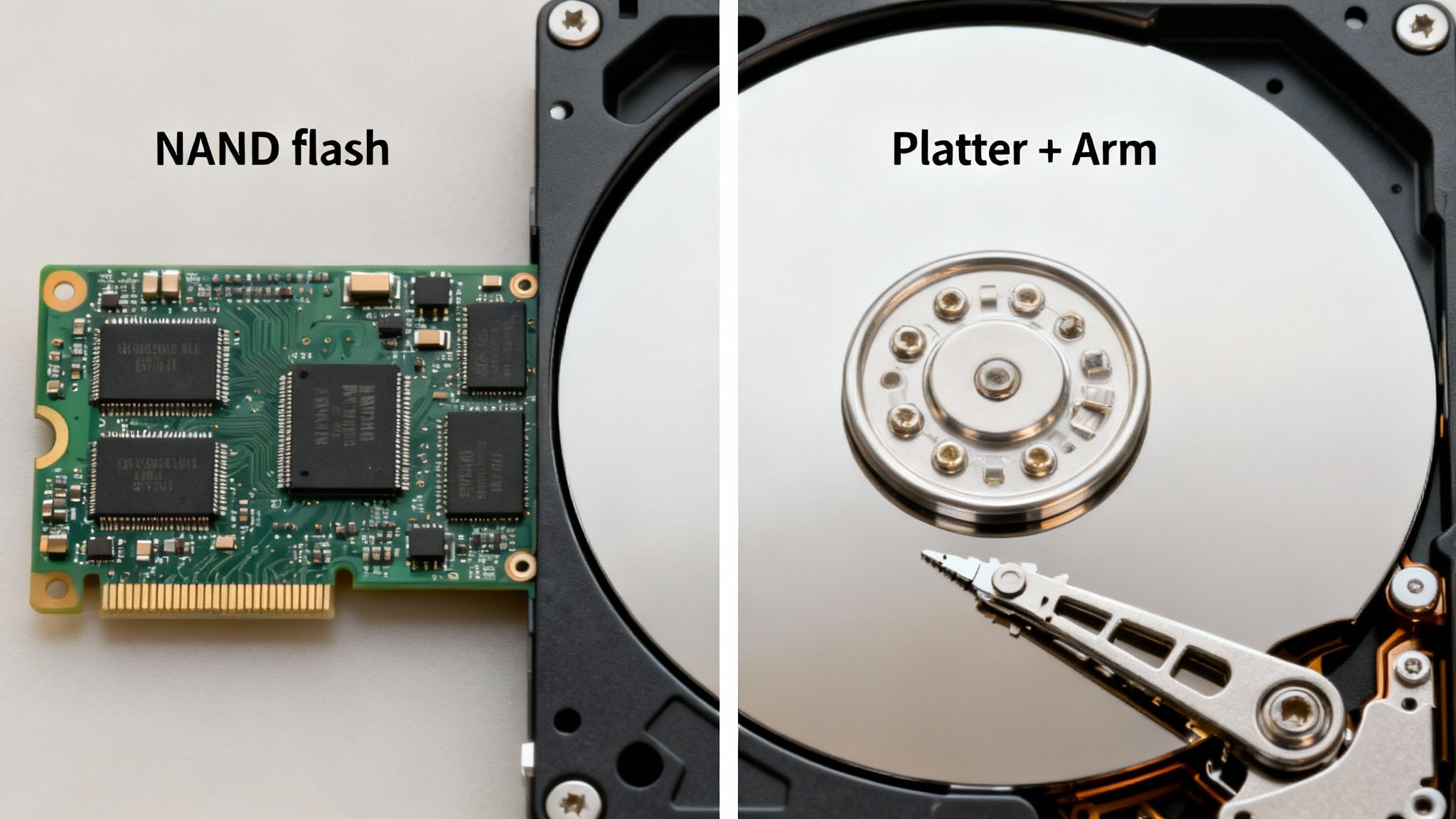
Think of a traditional hard disk drive (HDD) as a high-tech record player. Inside the casing, you’ll find one or more magnetic platters spinning at incredibly high speeds—usually between 5,400 to 7,200 RPM. A tiny read/write head on an actuator arm floats just above the platter's surface, zipping back and forth to find and interact with your files.
It's a marvel of mechanical engineering, but all that movement creates a bottleneck. Every time you ask your computer to open a file, the platters have to spin and the arm has to physically move to the right spot. That delay is called "seek time," and it’s the main reason HDDs feel sluggish.
The Solid-State Advantage
A solid-state drive (SSD), by contrast, has no moving parts at all. It’s more like a very sophisticated and large USB flash drive. Data is stored on interconnected flash memory chips called NAND flash memory. When you need a file, the SSD's controller can access the data almost instantly because there's no physical searching involved.
This "solid-state" design completely sidesteps the mechanical delays of an HDD. The difference is night and day: you get lightning-fast boot times, apps that launch in a snap, and file transfers that finish in seconds, not minutes. The lack of moving parts also makes them far more durable.
The absence of moving parts makes an SSD remarkably resilient to drops, bumps, and vibrations. For mobile professionals, this is a critical advantage that protects valuable data from the risks of daily travel and use.
This inherent toughness makes SSDs the clear winner for laptops or any device that gets moved around.
Data Storage Mechanics Explained
The way they store data at a fundamental level also sets them apart, affecting their behavior over the long haul.
- HDD Data Storage: An HDD works by magnetizing tiny sectors on its platters. The read/write head then senses these magnetic fields to read the data back. It’s a proven, stable method that allows for massive storage capacities at a very low cost.
- SSD Data Storage: An SSD stores data by trapping electrons inside memory "cells." While this is incredibly fast, each cell can only be written to a finite number of times. This used to be a major concern, but modern SSDs use clever wear-leveling algorithms that spread write operations evenly across all the cells, dramatically extending their lifespan well beyond what most business or home users will ever need.
Early worries about SSD longevity were understandable, but today's drives are incredibly reliable for just about any workload. Knowing these core differences—mechanical vs. electrical—is key to understanding why one is built for speed and the other for cheap, spacious storage.
Measuring Real-World Performance and Speed
It’s one thing to talk about the theory behind SSDs and HDDs, but what really matters is how that tech translates into everyday speed. When you get down to it, performance isn't just a number on a spec sheet. It's about the time you get back in your day, the frustration you avoid, and how much more you can get done.
The first and most dramatic difference you'll feel is when you turn your computer on. A system with a classic spinning hard drive might take a minute or even longer to get going while its mechanical arm physically searches for the operating system files. An SSD, on the other hand, can have you booted up and ready to work in as little as 10 to 15 seconds. That change alone can completely transform your daily routine.
Application Launch and File Transfers
The performance gap gets even wider after you've booted up. Firing up demanding applications—think accounting software, graphic design suites, or patient management systems—is where an SSD truly flexes its muscles. An HDD might leave you staring at a loading screen for 30 seconds or more, while an SSD often gets the job done in just a few.
This speed is absolutely critical when you're working with large files.
- For a law firm: Pulling up a massive multi-gigabyte case file from an HDD could take several minutes. With an SSD, that same document opens almost instantly, which means more time spent on billable work and less time spent waiting.
- For a dental office: Accessing large patient X-rays or 3D scans on an SSD is instantaneous. This not only improves chairside efficiency but also cuts down on patient wait times, creating a much smoother experience for everyone.
Moving a big chunk of data, like a video project or a client database, is another area where the difference is night and day. An SSD can maintain transfer speeds 5 to 10 times faster than a typical HDD, finishing the task in a fraction of the time. For any small or mid-sized business where efficiency is everything, this is a huge deal. For more tips, check out our guide on other ways to speed up a slow computer.
For any business, the most important performance metric is how responsive your applications are. An SSD can improve this by up to 10x, which means the software you depend on every day runs smoothly, letting your team work without frustrating delays.
A Practical Look at Business Upgrades
The real-world benefits of SSD speed offer a clear return on investment. For the small and mid-sized businesses we serve here at GT Computing in Connecticut, upgrading servers with SSDs means slashing boot times and making applications feel incredibly responsive. Because SATA interfaces still command a 58.81% market share, you can often get these upgrades without a complete and costly system overhaul.
The sweet spot for capacity is also clear: 500GB-1TB SSDs hold a 39.41% unit share, giving most professionals the perfect balance of space and performance without breaking the budget. This isn't just a minor tweak—it's a fundamental improvement in how your technology supports your entire operation. Waiting on a slow computer simply doesn't have to be part of the workday anymore.
Balancing Storage Cost and Capacity
When you're weighing SSDs vs. HDDs, the conversation almost always lands on one critical factor: the cost per gigabyte. For years, Hard Disk Drives (HDDs) have been the go-to for anyone needing massive storage without a massive price tag. They are, without a doubt, the champions of cheap, high-capacity storage, making them a default choice for archiving huge datasets or building a local backup system.
But that simple math doesn't tell the whole story. A smarter way to look at it is through the lens of total cost of ownership. Sure, a Solid-State Drive (SSD) costs more upfront for the same amount of space, but the incredible speed it delivers can pay for itself in productivity gains that genuinely affect your bottom line.
The Hybrid Solution: A Strategic Compromise
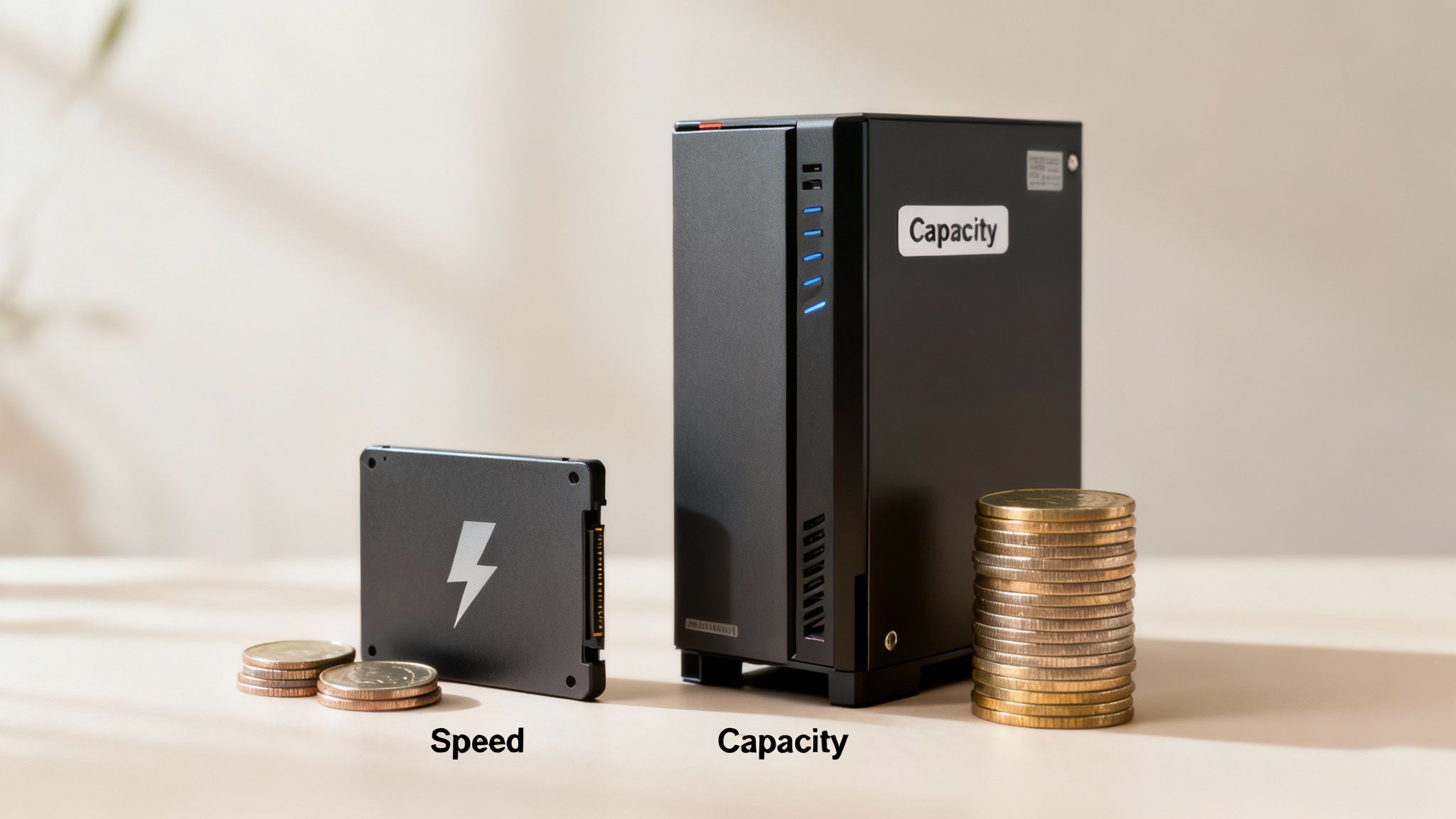
For most people, the best answer isn't picking one over the other—it's using both. A hybrid storage solution strikes a brilliant balance between raw speed and sheer capacity, giving you the best of both worlds without forcing you to empty your wallet.
The setup is pretty straightforward. You use a smaller, faster SSD as your main drive to hold your operating system and the applications you use every day. Then, you add a larger, much cheaper HDD as a secondary drive to store all your bulk files—documents, photos, project files, and backups.
By pairing a nimble SSD with a high-capacity HDD, you get the instant responsiveness needed for daily tasks while retaining affordable, long-term storage for everything else. This approach is the most efficient way to maximize both your budget and your computer's performance.
This configuration means your computer boots in a flash and your key programs load almost instantly, while your massive digital library has a safe and spacious home on the HDD. It's a powerful and practical setup that works just as well for professionals as it does for home users.
Navigating the Cost and Capacity Trade-Off
The price difference between SSDs and HDDs can be pretty stark, and the market can be volatile, which makes planning ahead crucial. For a cost-conscious small business, dental office, or law firm juggling ever-growing client files, this makes a hybrid setup an intelligent move. In fact, recent analysis from outlets like Tom's Hardware has shown SSD prices can spike to over 16 times the cost-per-gigabyte of HDDs. That kind of market swing highlights just how important it is to have a proactive IT strategy.
Thinking ahead is the name of the game here. Smartly managing your hardware ensures you invest in the right tech at the right time. For a closer look at how to do this effectively, check out our guide on IT asset management best practices.
Ultimately, whether you go with an SSD, an HDD, or a hybrid model all comes down to your specific needs and budget.
- For pure performance: If speed is all that matters, an all-SSD setup is untouchable, but it comes with a premium price.
- For maximum storage on a budget: An HDD is still the most economical way to go for archiving and storing large volumes of data.
- For a balanced approach: A hybrid solution delivers the speed you need for daily work and the space you need for everything else.
By taking a moment to evaluate your actual workflow, you can make a smart decision that boosts your productivity and gives your data a solid foundation.
SSD vs. HDD: Which One Lasts Longer and Protects Your Data Better?
When you’re storing critical business files or irreplaceable family photos, the last thing you want to worry about is your drive dying. So, which is more reliable: an SSD or an HDD? The answer isn't as simple as it used to be, but for most people today, the modern SSD has a clear edge.
At the heart of the debate is how each drive is built. Solid-State Drives (SSDs) are pure electronics with no moving parts. This makes them incredibly resilient to the bumps, drops, and vibrations of daily life. For anyone using a laptop or working on the go, this physical durability is a massive advantage.
Hard Disk Drives (HDDs), on the other hand, are miniature marvels of mechanical engineering. They rely on spinning platters and a hyper-sensitive read/write head that hovers just above the surface. A sudden jolt can cause that head to crash, leading to catastrophic data loss in an instant. It’s the drive’s greatest strength and its biggest weakness.
How Long Can You Expect Them to Last?
The industry uses a metric called Mean Time Between Failures (MTBF) to estimate a drive's operational lifespan. You'll often see this number in the millions of hours, but it’s a statistical average, not a guarantee.
There’s a persistent myth that SSDs wear out quickly because their memory cells have a limited number of write cycles. While true in theory, modern SSDs have solved this problem with a clever trick called wear-leveling. This technology acts like a traffic controller, spreading data writes evenly across all the cells. It ensures no single part of the drive gets overworked, dramatically extending its life well beyond what most users will ever need.
An SSD's solid-state design makes it fundamentally more resilient to physical stress. For businesses where data is mission-critical, like a busy dental office with vibration-prone equipment or a law firm with professionals constantly on the move, this durability provides essential peace of mind.
For our clients at GT Computing, this translates into fewer system failures and less downtime. High-quality SSDs now boast MTBF ratings of 2 to 5 million hours, easily surpassing the 1 to 2 million hours common for HDDs. This reliability, paired with their natural shock resistance, makes them a perfect fit for any professional setting.
Interestingly, the most popular 500GB-1TB capacity tier, which HDIN research shows has a 39.41% market share, hits the sweet spot for most business needs. For Connecticut SMBs, upgrading to an SSD with our hardware experts means a faster, more dependable computer that's built to withstand the rigors of a modern workplace.
Your Ultimate Safety Net: Proactive Backups
Here’s the hard truth: no drive is invincible. Whether you invest in a top-of-the-line SSD or a massive HDD, hardware will eventually fail. It’s not a matter of if, but when.
This is why a solid backup strategy is non-negotiable. Don’t rely on a single piece of hardware to protect your data. A smart plan has multiple layers of protection:
- Local Backups: Keep a recent copy of your essential files on an external drive. It’s fast, easy, and great for quick recoveries.
- Cloud Backups: Use an automated cloud service to store an off-site copy of everything. This protects you from local disasters like fire, flood, or theft.
- A Professional Partner: Know who to call when things go wrong. Having an IT partner like GT Computing on standby means you have an expert ready to help with data recovery if the worst happens.
Ultimately, while SSDs offer a clear advantage in durability and have lower failure rates, the best defense is a good offense. Combining reliable hardware with a robust backup and recovery plan is the only way to truly secure your data for the long haul.
Choosing the Right Drive for Your Needs
So, we've broken down the tech, performance, cost, and reliability of both SSDs and HDDs. Now comes the important part: making the right choice for you. There’s no single right answer here. The best drive depends entirely on how you work, what you can spend, and what kind of performance you expect. It's all about matching the drive's strengths to your daily grind.
For a lot of us, time is money, and a slow computer is a drain on productivity. An SSD isn't just a piece of hardware; it’s a tool that can genuinely change how you get things done.
Recommendations for Business Professionals
If you’re a lawyer, architect, or anyone who juggles large, complex files, an SSD for your main workstation isn't just a nice-to-have—it's essential. The power to open massive case files, detailed architectural renderings, or client databases in seconds instead of minutes pays for itself. You get more done, and you can serve your clients better. The return on investment is immediate and obvious.
For a small business, every minute saved on loading times is a minute that can be spent on billable work or client engagement. An SSD upgrade is one of the most cost-effective ways to boost overall team productivity.
This chart is a great way to visualize the decision-making process based on what matters most to you.
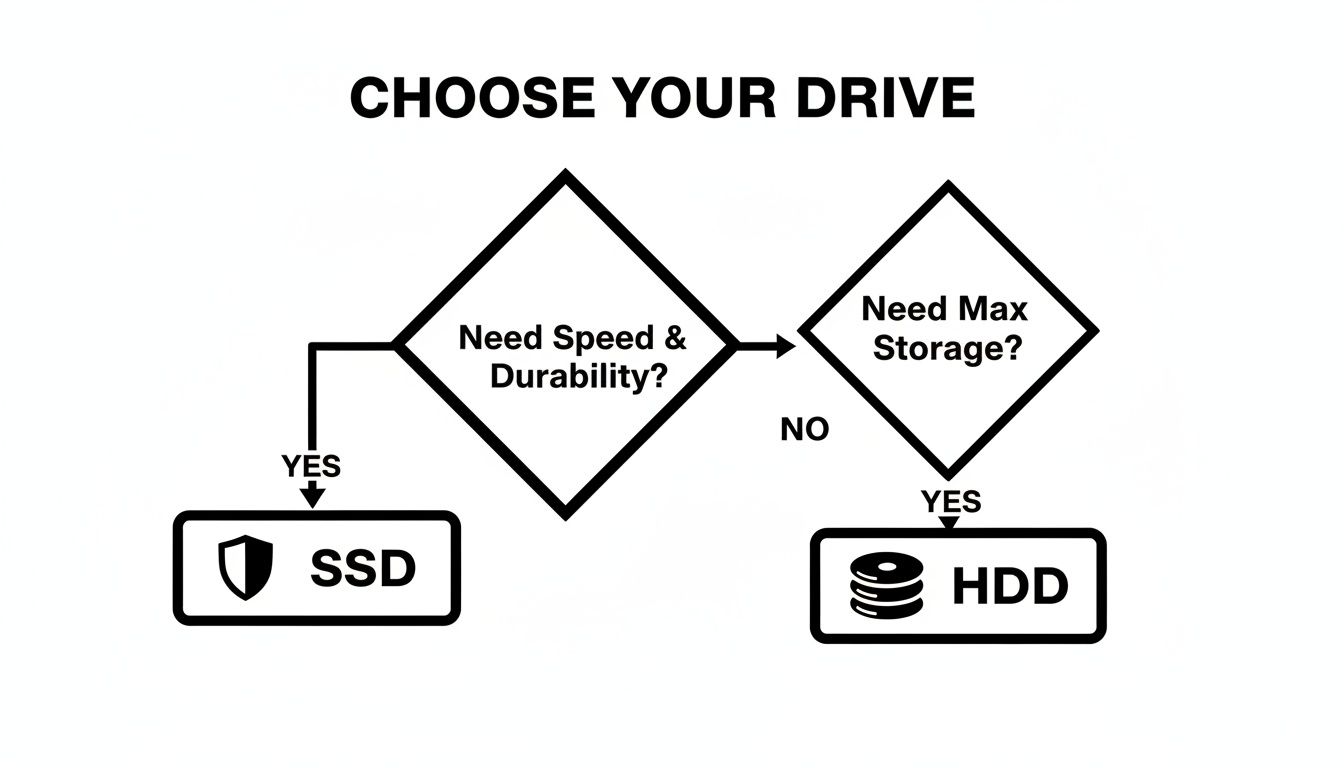
As you can see, if speed and durability are your main concerns, the SSD is the clear winner. But if you just need a massive amount of storage without breaking the bank, the HDD still holds its ground.
Scenarios for Home Users and Gamers
For most home users, a hybrid approach hits the sweet spot. Pop an SSD in for your operating system and your most-used programs, and you'll get that instant, snappy feel for all your everyday tasks. Then, pair it with a large HDD for all your photos, music, and home videos. You get the best of both worlds without the hefty price tag.
Gamers especially love this dual-drive setup. An SSD drastically cuts down on game load times, which means less waiting and more playing. For a really deep dive into how these drives stack up for gaming, this guide on SSD vs HDD for gaming offers a great breakdown. The HDD then becomes the perfect place to store your huge library of games you don't play as often.
The Ideal Server Solution for Businesses
What about businesses that need both speed for day-to-day operations and a ton of storage for backups and archives? A hybrid server is the way to go. Using SSDs for the server's operating system and active databases keeps the entire network running fast and smooth for everyone. At the same time, high-capacity HDDs can handle daily backups and long-term data archiving without costing a fortune.
Your server is the backbone of your office, so getting it right is crucial. You can learn more about getting the most out of your hardware in our guide on how to optimize computer performance.
Ultimately, deciding between an SSD and an HDD—or using both—is a strategic choice. By thinking carefully about what you do every day, you can build a system that perfectly fits your needs and your budget.
Taking the Next Step
Choosing between an SSD and an HDD is a big decision that sets the stage for your computer's performance. But the work doesn't stop once you've picked your drive. What happens when it's time to upgrade or retire that old hardware?
Properly wiping your data is a critical, often overlooked, step. You can't just delete files; you have to make sure your sensitive information is gone for good. This guide on how to erase a hard drive completely is a fantastic resource to walk you through that process securely.
Need a Hand With Your IT?
From picking the right hardware to keeping your entire network running smoothly, managing technology can feel like a full-time job. At GT Computing, we take care of the tech headaches so you can focus on what you do best.
We offer fast, reliable IT support for both home users and businesses. Whether you're upgrading your office network, need urgent data recovery, or want a proactive managed IT plan, our team is here to keep you secure and productive.
Ready to get started? Let's talk.
Call: 203-804-3053
Email: Dave@gtcomputing.com
Keep your business running without IT headaches.
GT Computing provides fast, reliable support for both residential and business clients. Whether you need network setup, data recovery, or managed IT services, we help you stay secure and productive.
Contact us today for a free consultation.
Call 203-804-3053 or email Dave@gtcomputing.com