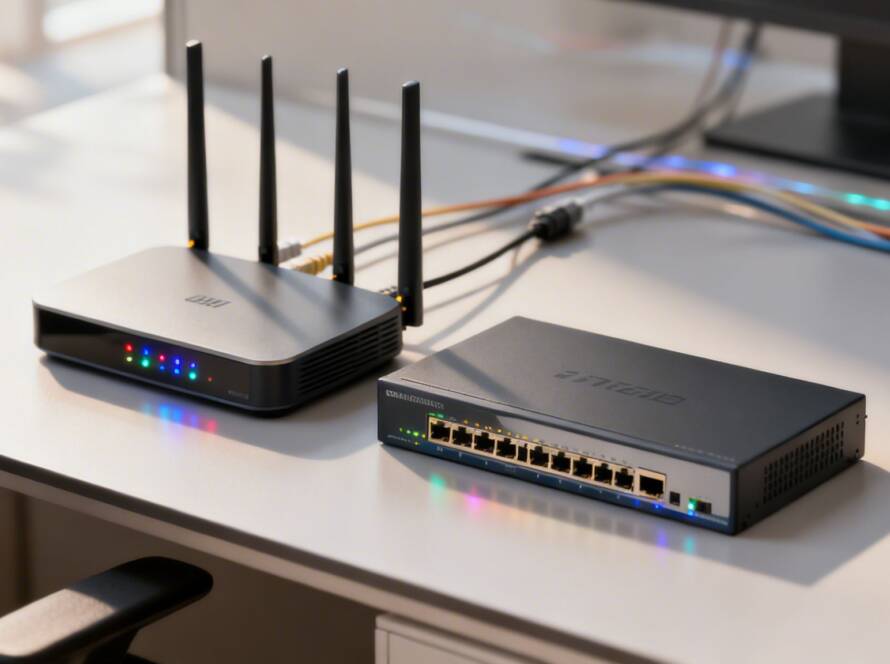


When your computer acts up, the first instinct is often a jolt of panic. We've all been there. But before you assume the worst, take a deep breath. Most of the time, a quick check of the basics is all you need. Is everything actually plugged in? Is the power strip turned on? You'd be surprised how often that's the fix.
Taking a moment for this simple triage can save you a ton of frustration and get you back to work in seconds. It’s the first thing any experienced tech does.
Your First Response to Common PC Problems
That feeling when your PC slows to a crawl or just won't turn on is the worst. But those first few minutes are your best chance to figure out what's really going on without a lot of guesswork. Instead of jumping to conclusions, a methodical approach can usually isolate the problem, turning a potential disaster into a minor hiccup.
We’re going to walk through the immediate steps for three of the most common headaches: a machine that won’t power on, a system that suddenly becomes unbearably slow, and a complete loss of internet. Learning to check for the simple culprits—like a loose power cord or a tripped surge protector—is your first and most powerful line of defense.
This decision tree is a great visual guide for that initial triage. It helps you quickly sort the problem into one of three buckets: power, performance, or network.
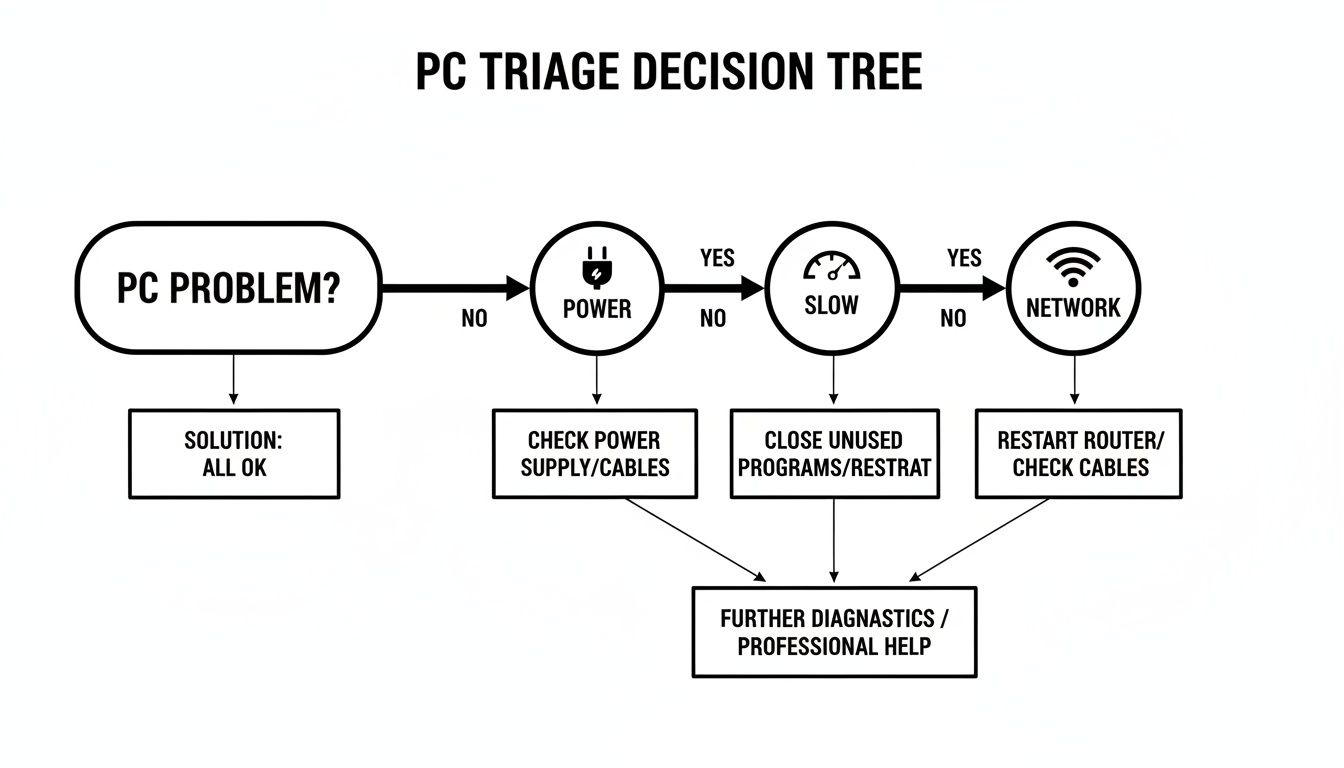
Running through a simple flowchart like this helps you narrow things down fast. You can quickly tell the difference between something you can fix yourself and a more serious issue that might need a professional.
Empowering Your Troubleshooting
Knowing how to perform this initial check does more than just help you solve the small stuff. It also gives you the right language to describe the problem if you do need to call for backup. Simply telling a technician, "I've already confirmed the power cable is secure and tried a different outlet," saves valuable time and helps us get to the root of the issue much faster.
To help you get started, this table outlines some common symptoms and what they might point to—from the simple fixes to the more serious possibilities.
Quick Triage Checklist for PC Issues
| Symptom | Potential Simple Cause | Potential Serious Cause |
|---|---|---|
| PC won't turn on | Loose power cable, tripped surge protector, dead wall outlet. | Failed power supply unit (PSU), motherboard failure. |
| Extremely slow performance | Too many background apps running, low disk space. | Failing hard drive, malware infection, overheating CPU. |
| No internet connection | Wi-Fi is turned off, loose Ethernet cable, router needs a reboot. | Failed network card, incorrect network settings, ISP outage. |
| Frequent crashes or "Blue Screen" | New software or driver conflict. | RAM failure, corrupted operating system, bad motherboard. |
This checklist isn't exhaustive, but it's a solid starting point for any diagnosis. By matching your symptoms here, you can get a better idea of where to focus your efforts.
Of course, the hardware we depend on is always evolving. The global PC market is picking up again, with recent projections from sources like Deloitte's technology outlooks showing a notable rise in shipments. For IT service providers like GT Computing, this is significant. As businesses refresh their technology, the need for certified technicians to handle diagnostics, hardware management, and performance tuning only grows.
This guide gives you the foundation for that first diagnostic step, so you can tackle common issues with confidence.
Our Pro Tip: A calm, structured approach is your best troubleshooting tool. Always start with the physical connections and work your way inward. Never assume it's a major failure until you've ruled out the simple stuff.
Keep your business running without IT headaches.
GT Computing provides fast, reliable support for both residential and business clients. Whether you need network setup, data recovery, or managed IT services, we help you stay secure and productive.
Contact us today for a free consultation.
Call 203-804-3053 or email Dave@gtcomputing.com
Troubleshooting a Slow or Unresponsive Computer
There's nothing more frustrating than a computer that grinds to a halt. When your mouse stutters and programs freeze, it kills your focus and tanks your productivity. The temptation to just hit the restart button is strong, and while that sometimes works as a quick fix, it rarely gets to the heart of the problem. To get some real pc quick help, you need to play detective.

The first place I always look is the Task Manager. You can pull it up instantly with the Ctrl + Shift + Esc shortcut. This little tool is your window into everything your PC is doing behind the scenes.
Once you have it open, click over to the "Processes" tab. Sort the list by the "CPU" and "Memory" columns to see what's using the most resources. If an app is consistently eating up a huge percentage of your processing power or RAM, you’ve probably found your culprit. It might be a demanding application you forgot was running or even a single rogue browser tab.
Taming Startup Programs and Managing Space
Another classic performance killer? Too many programs launching the moment you turn on your computer. Each one adds to your boot time and then sits in the background, quietly consuming system resources all day.
- Curb Your Startup Enthusiasm: Inside the Task Manager, find the "Startup" tab. You'll see every application that wants to run when Windows loads. Go through the list and disable anything that doesn't need to be there from the get-go—think software updaters, game launchers, or music apps. Just right-click and choose "Disable." You'll be amazed at how much faster your PC is ready for action.
- Give Your Hard Drive Breathing Room: Your computer's performance can take a nosedive when your main hard drive (usually the C: drive) gets crammed full. Windows needs that empty space for virtual memory and temporary files to function efficiently. As a rule of thumb, always try to keep at least 20% of your drive capacity free.
Think of it like this: cleaning out old downloads and temporary internet files is the digital equivalent of decluttering your desk. It instantly makes your workspace feel more organized and efficient.
If you want to go a step further, we have an entire guide on how to speed up a slow computer that walks you through more advanced maintenance routines.
The Hidden Impact of Drivers and System Files
Sometimes, the slowdown is more mysterious. The cause often lies with outdated or corrupted drivers—the essential software that lets your hardware (like your graphics card) talk to your operating system. Old digital clutter left behind by uninstalled programs can also bog things down.
Make it a habit to check for new graphics, network, and chipset drivers directly from the manufacturer's website. These updates frequently contain critical bug fixes and performance boosts. Running a quick disk cleanup to clear out system junk can also provide a surprisingly noticeable speed increase. These checks help you figure out if you're dealing with simple digital clutter or something more serious, like a malware infection that needs a professional eye.
Keep your business running without IT headaches.
GT Computing provides fast, reliable support for both residential and business clients. Whether you need network setup, data recovery, or managed IT services, we help you stay secure and productive.
Contact us today for a free consultation.
Call 203-804-3053 or email Dave@gtcomputing.com
No Internet? Here's Where to Start
Nothing stops productivity faster than a dead internet connection. When your PC suddenly can't get online, the problem could be anything from a cable that got kicked loose to a much bigger network-wide failure. Before you panic, let's run through some quick diagnostics that solve the majority of connection problems. This is the same pc quick help process we use to start any connectivity triage.
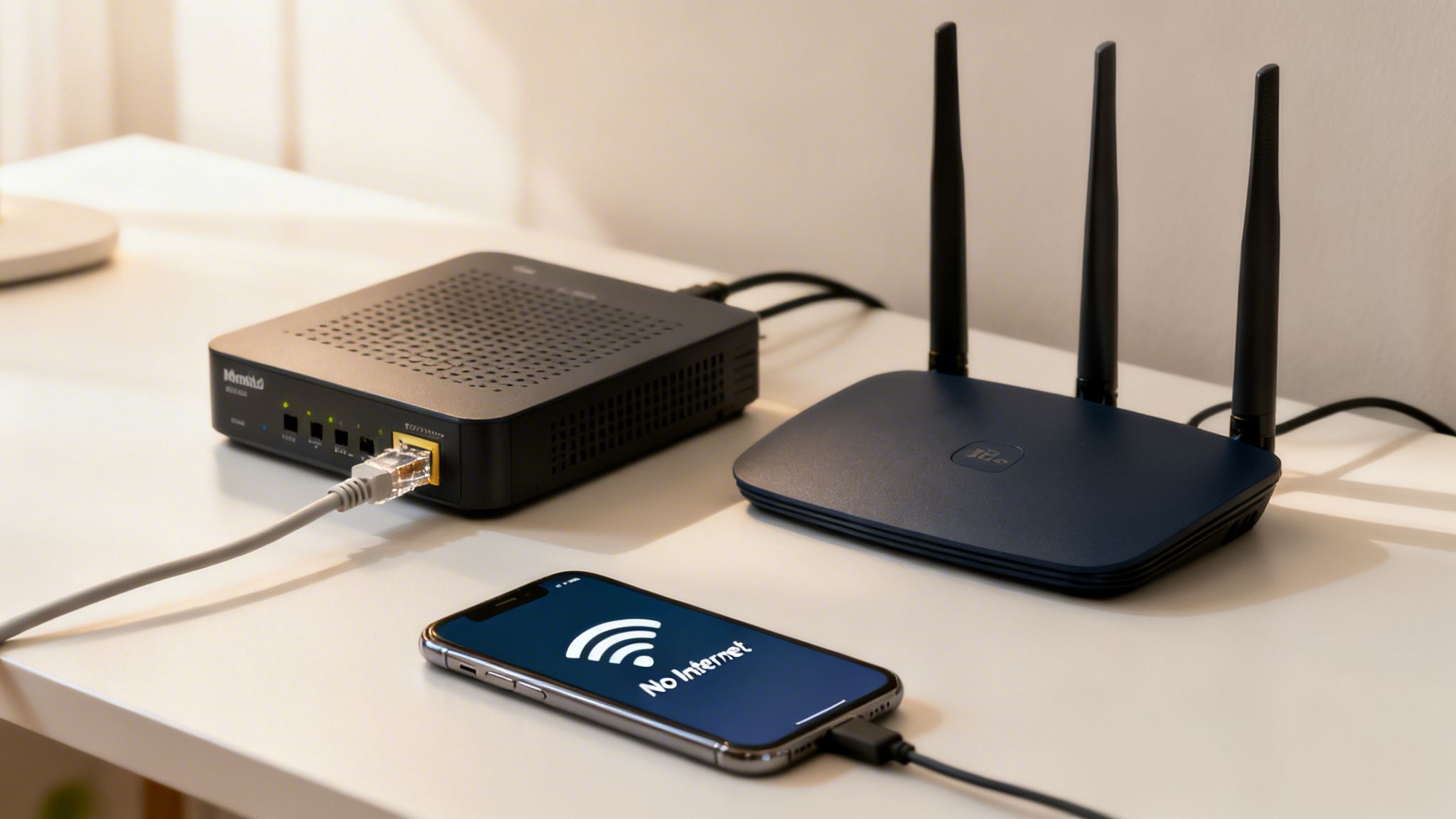
First things first, check the basics right at your desk. If you’re plugged in with an Ethernet cable, make sure it's clicked securely into both your computer and your router. For Wi-Fi users, it's surprisingly common for the wireless adapter to get turned off by accident. Look for a Wi-Fi button on your keyboard or an icon in your system tray to make sure it's enabled.
The Classic Reboot Ritual
Believe it or not, the old "turn it off and on again" trick works wonders for network gear. Power cycling your modem and router clears out temporary glitches and can instantly fix that frustrating "Connected, no internet" status.
But the order you do it in matters. Follow this sequence for the best shot at success:
- Unplug the power cords from both the modem and the router. Don't just turn them off; pull the plug.
- Now, wait a full 60 seconds. This is critical—it gives the internal memory time to completely reset.
- Plug the modem in first. Let it fully boot up. You're waiting for the status lights (usually Power, Receive, Send, and Online) to go solid.
- Once the modem is ready, plug your router back in and give it a minute or two to start broadcasting again.
This simple process forces your equipment to get a fresh handshake with your Internet Service Provider (ISP) and resolves a huge percentage of home and small office network issues.
Is It Just Your PC, Or Something Bigger?
If a proper reboot didn't do the trick, it's time to broaden the investigation. Can your smartphone connect to the Wi-Fi? What about a coworker's laptop or a smart TV?
If you find that multiple devices are offline, the problem isn't with your individual computer. This points to a deeper issue, like a failing router, a firewall problem, or a genuine service outage in your area.
Knowing how to troubleshoot network issues fast is a valuable skill. By checking other devices, you can quickly determine whether you should keep working on your PC or if you need to call in professional help for your central network. It saves you from wasting an hour on your machine when the real culprit is the hardware in your utility closet.
Keep your business running without IT headaches.
GT Computing provides fast, reliable support for both residential and business clients. Whether you need network setup, data recovery, or managed IT services, we help you stay secure and productive.
Contact us today for a free consultation.
Call 203-804-3053 or email Dave@gtcomputing.com
Identifying and Responding to Malware Symptoms
That sinking feeling when you think your computer has a virus is all too common. When you need pc quick help, knowing what to do in those first few minutes can make all the difference in protecting your data.
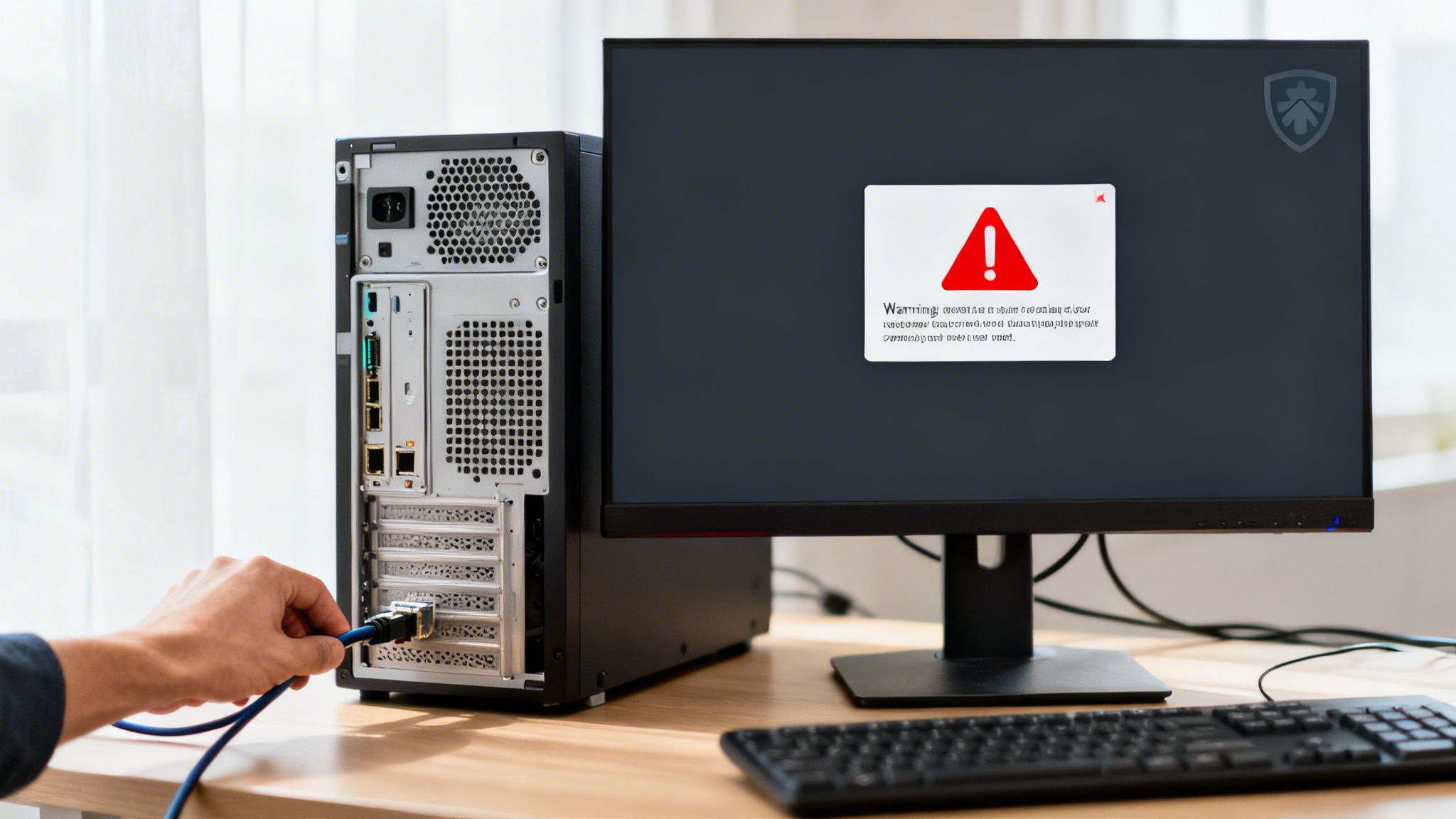
Some infections are impossible to ignore—a sudden storm of pop-up ads, your web browser being hijacked by a strange new homepage, or your whole system slowing to a crawl. But often, the most dangerous malware works silently in the background.
The Immediate Response: Isolate the Threat
If you suspect an infection, your single most critical first step is to immediately disconnect the computer from the network. Don't hesitate. Pull the Ethernet cable or switch off the Wi-Fi. This simple action quarantines the machine, stopping the malware from spreading across your network to other computers or servers.
Think of it like this: you're slamming the door on the intruder. By taking the PC offline, you cut off the malware's ability to "phone home" to its control server or steal more of your data.
With the computer isolated, you can try running a full scan with your installed antivirus software. But you should also be on the lookout for less obvious signs that you’re dealing with something nasty.
Subtle Clues of an Ongoing Infection:
- Strange Network Lag: Your internet feels sluggish even when you aren't doing anything. This could be malware secretly using your bandwidth to send or receive data.
- Disabled Security Tools: You open your antivirus or firewall settings only to find they've been turned off, and you didn't do it. This is a huge red flag that malware is actively covering its tracks.
- Random Crashes or Reboots: If your PC starts crashing or restarting for no reason, it could mean malware is messing with essential system files.
When Consumer Antivirus Isn't Enough
Running a standard antivirus scan is a solid first step, but it’s often not a final solution. Modern malware, especially ransomware and stealthy rootkits, is built to burrow deep into your operating system. They are experts at hiding and can easily survive a basic cleaning, only to pop back up after you reboot.
For a more detailed breakdown of what to watch for, check out our guide on the common signs your computer has a virus.
When you're up against these advanced threats, a professional deep-system cleaning is your best bet. A technician uses specialized tools that go far beyond off-the-shelf software to hunt down and completely remove every piece of the infection. For a business, you simply can't risk having malicious code lingering on a machine where it could compromise client data or financial records.
Keep your business running without IT headaches.
GT Computing provides fast, reliable support for both residential and business clients. Whether you need network setup, data recovery, or managed IT services, we help you stay secure and productive.
Contact us today for a free consultation.
Call 203-804-3053 or email Dave@gtcomputing.com
When to Put the Screwdriver Down and Call a Pro
It feels great to solve your own computer problems, but one of the most important skills a DIY troubleshooter can learn is knowing when to stop. Sometimes, pushing a fix too far can turn a simple repair into a complete disaster, especially when serious hardware is on the line.
Certain symptoms are giant, flashing red flags. They tell you you’ve ventured beyond a simple software glitch and are now in professional territory.
If you hear a rhythmic clicking, ticking, or grinding noise coming from inside your computer, stop everything. Seriously. That’s the classic "click of death" from a failing hard drive. Running diagnostics or even just keeping the PC on can physically shred the delicate platters inside, making data recovery exponentially harder—and sometimes impossible.
Heed These Serious Warning Signs
Beyond strange noises, a few other symptoms are your computer’s way of screaming for help. These aren’t minor annoyances; they signal a critical failure that needs an expert's touch.
The Relentless 'Blue Screen of Death' (BSOD): A single blue screen might just be a random fluke, maybe a new driver acting up. But if you’re seeing them constantly, especially right after you reboot, you're likely dealing with failing RAM, a deeply corrupted operating system, or a motherboard problem. You need specialized tools to diagnose that accurately.
A Completely Lifeless PC: You press the power button and… nothing. No lights, no fan spin, not even a faint beep. If you’ve already checked that the power cord is plugged in and the wall outlet works, you’re probably looking at a dead power supply unit (PSU) or a fried motherboard. Guessing which one it is and trying to swap parts can be a costly—and risky—gamble.
The Smell of Burning Electronics: This one is non-negotiable. If you smell that acrid, plasticky, burning odor, a component is actively shorting out or frying. Unplug the machine from the wall immediately. This isn’t just about saving your data; it’s about preventing a fire hazard.
My rule of thumb is simple: if the problem involves a scary noise, a persistent system-level crash, or a physical sign like a burning smell, your job is to stop. Unplug it and call for help. The risk of losing your data forever or creating a much more expensive repair is just too high.
It's no surprise that the need for skilled technicians is on the rise. The global computer repair and refurbishment service market is growing, partly because new hardware is so expensive and people want to be more sustainable. This trend, which you can read more about here, underscores just how valuable expert repair is, especially for businesses that can't afford downtime.
In these situations, a professional technician has the right diagnostic equipment, spare parts, and experience to safely get to the root of the problem, ensuring your critical work and precious data are handled the right way.
Keep your business running without IT headaches.
GT Computing provides fast, reliable support for both residential and business clients. Whether you need network setup, data recovery, or managed IT services, we help you stay secure and productive.
Contact us today for a free consultation.
Call 203-804-3053 or email Dave@gtcomputing.com
Preparing for Your IT Support Call
So you've decided it's time to bring in the pros. Smart move. But before you dial, taking just a few minutes to prepare can turn a long, frustrating support call into a quick, painless fix. Giving a technician a good head start is the secret to getting the pc quick help you need.
Think of it like visiting a doctor—the more information you can provide upfront, the faster they can diagnose the ailment.
What to Have Ready Before You Call
Every technician is going to ask for the same basic details, so having them on hand saves you from scrambling to find them during the call.
Grab a notepad or open a text file and jot these things down:
- Your PC's Identity: What is the make and model? You can usually find this on a sticker on the tower, the bottom of your laptop, or sometimes on the screen bezel (e.g., Dell OptiPlex 7010, HP Spectre x360).
- The Operating System: Are you running Windows 10, Windows 11, or a version of macOS?
- A "Scene of the Crime" Report: When did the problem first appear? Try to remember what you were doing right before it started. Installing a new program or plugging in a new device is often a key clue.
- The Specifics: "It's slow" is a tough starting point. "Microsoft Word hangs for 10 seconds every time I hit 'save'" is a golden lead. The more detail, the better.
One of the best pieces of evidence you can give us is a picture of an error message. The moment one pops up, resist the urge to click it away. Grab your phone and snap a quick photo. That exact text can tell an expert almost everything they need to know.
To give your support team even better context, knowing how to capture screen PC recordings can be incredibly helpful. A short video showing the steps that lead to a crash or error is often more valuable than words alone.
Finally, if you can, back up your critical files before the service call. While any good technician takes extreme care with your data, having your own recent backup provides a priceless safety net and total peace of mind. As technology gets more complex, the value of both professional service and data diligence keeps rising. It's a trend seen across the industry, with the refurbished computer market even projected to hit USD 23.9 billion by 2026 as people look for reliable, cost-effective tech solutions.
Keep your business running without IT headaches.
GT Computing provides fast, reliable support for both residential and business clients. Whether you need network setup, data recovery, or managed IT services, we help you stay secure and productive.
Contact us today for a free consultation.
Call 203-804-3053 or email Dave@gtcomputing.com
Your Partner in Proactive IT Management
Fixing a computer is one thing, but what if you could stop it from breaking in the first place? The smartest move any modern business can make is shifting away from frantic, reactive repairs and toward proactive IT management. This approach builds a stable, secure technology foundation so you can actually focus on your business, not on constant IT fires.
This isn't just about offering pc quick help when a screen goes dark. It’s about putting systems in place that prevent those disruptions from ever happening.
Building a More Resilient Business
A proactive strategy is really all about building business resilience. Instead of waiting for a hard drive to fail, a server to crash, or a phishing email to cripple your operations, you anticipate these risks and get ahead of them.
From my experience, this usually boils down to a few core fundamentals:
- Continuous Device Monitoring: We’re talking about actively watching the health of your computers and servers. This lets you catch the early warning signs—like a struggling hard drive or unusual performance dips—before they turn into a full-blown crisis.
- Automated Cloud Backups: Your data is everything. This ensures it's copied securely and automatically to an off-site location, turning a potential disaster into a minor inconvenience with a quick recovery.
- Professionally Managed Security: Deploying and maintaining business-grade antivirus, firewalls, and smart security policies is non-negotiable. It’s the only way to stay protected against cyber threats that are constantly getting smarter.
When you take these steps, you’re doing more than just fixing computer problems. You’re making a direct investment in your company’s operational continuity and creating an environment where technology consistently works for you.
At GT Computing, we serve as a dedicated IT partner for businesses across Connecticut, helping them stay productive and secure. For anyone ready to make this strategic shift, our managed IT services for small businesses are designed to prevent the very headaches and emergencies we’ve talked about. It's how we ensure your technology remains a powerful asset, not a frustrating liability.
Keep your business running without IT headaches.
GT Computing provides fast, reliable support for both residential and business clients. Whether you need network setup, data recovery, or managed IT services, we help you stay secure and productive.
Contact us today for a free consultation.
Call 203-804-3053 or email Dave@gtcomputing.com