


In our connected world, a high-performing and secure computer is essential for business continuity. However, a sudden slowdown, unexpected pop-ups, or frequent crashes can turn a reliable machine into a source of frustration and significant risk. These aren't just minor annoyances; they are often the first tell-tale signs your computer has a virus. Malicious software like viruses, trojans, and spyware can operate silently in the background, consuming critical system resources, stealing sensitive client or financial data, and compromising your entire network security.
For professionals in fields like law and dentistry, where data integrity and confidentiality are paramount, ignoring these symptoms is not an option. A minor infection can quickly escalate into a full-blown data breach, leading to regulatory fines, reputational damage, and operational downtime. Recognizing the symptoms early is the first critical step in protecting your business and your clients.
This comprehensive guide will walk you through the 10 most common and subtle signs your computer has a virus. For each indicator, we'll provide detailed explanations, actionable steps to verify the issue, and immediate remediation advice. Understanding these warning signs empowers you to take control, secure your system, and know precisely when it’s time to call in professional help from an expert like GT Computing. This ensures a small technical problem doesn't become a catastrophic business disaster, safeguarding your productivity and professional standing.
1. Unexpected System Slowdowns and Performance Degradation
One of the most common and disruptive signs your computer has a virus is a sudden, unexplained drop in performance. Your once-snappy machine might now take ages to boot up, applications may freeze or become unresponsive, and even simple tasks like opening a file can feel sluggish. This isn't just a minor inconvenience; for a business, it's a direct hit to productivity and operational efficiency.

Malicious software often runs continuously in the background, consuming a tremendous amount of system resources. It hijacks your computer's processing power (CPU), memory (RAM), and disk activity to carry out its tasks, leaving very little for your legitimate business applications.
Common Malware-Related Performance Issues
- Crypto-mining Malware: This type of virus secretly uses your computer's CPU and GPU to mine for cryptocurrency. A key indicator is seeing your CPU usage consistently maxed out at 80-100% in Task Manager, even when your computer should be idle.
- Ransomware: Before it reveals itself, ransomware works furiously to encrypt all your files. This causes extremely high disk usage (I/O spikes), making the entire system feel like it’s grinding to a halt.
- Botnets and Spyware: These infections run hidden background processes that communicate with a remote server, steal data, or send spam. Each of these processes consumes memory and CPU cycles, collectively degrading performance.
How to Check for Performance-Draining Malware
To investigate a slowdown, press Ctrl+Shift+Esc to open the Windows Task Manager (or Activity Monitor on a Mac). Click the "CPU," "Memory," and "Disk" columns to sort processes from highest to lowest consumption. If you see unfamiliar processes with generic names consuming an unusually high percentage of resources, it’s a major red flag. If your computer is slow for other reasons, you can explore potential solutions and learn more about how to fix a slow computer.
Expert Insight: For businesses, establishing a baseline performance metric for workstations is crucial. When a machine deviates significantly from this baseline without a clear cause (like a major software update), it should trigger an immediate security investigation. This proactive monitoring is a core component of the managed IT services provided by GT Computing.
2. Unexpected Pop-ups and Aggressive Advertising
Another one of the most intrusive signs your computer has a virus is a sudden barrage of pop-up windows, unwanted ads, and unexpected browser redirects. These aren't the typical banner ads on a website; they often appear even when your web browser is closed or layered on top of your work, severely disrupting workflow. For a business, this constant distraction is not only a productivity killer but also a significant security risk.

This aggressive advertising is typically caused by adware or Potentially Unwanted Programs (PUPs) that get bundled with free software downloads. Once installed, they embed themselves into your system and browser, generating revenue for their creators by forcing ads on you. These pop-ups can be deceptive, often mimicking legitimate system warnings to trick you into clicking malicious links.
Common Adware and PUP-Related Issues
- Fake Security Alerts: You might see pop-ups claiming to be from Microsoft or your antivirus provider, warning of a critical threat. These are scams designed to persuade you to download more malware or pay for fake technical support.
- Browser Hijackers: Adware can change your browser's homepage, default search engine, and even redirect your search results to suspicious or ad-filled websites without your permission.
- Ad-Injected Websites: Malicious browser extensions can inject extra banner ads and pop-ups onto legitimate websites you visit, creating a cluttered and unsafe browsing experience.
How to Check for Adware Infections
Start by reviewing your browser extensions. In Chrome, go to Settings > Extensions; in Edge, go to Settings > Extensions. Disable and remove any extensions that you do not recognize or did not intentionally install. Next, check your list of installed programs via the Control Panel (or Apps & features in Windows 10/11) and uninstall any unfamiliar software, especially if it was installed around the time the pop-ups began.
Expert Insight: Adware is a common entry point for more dangerous threats like ransomware. For businesses, implementing a web filtering solution is a critical defensive layer. This technology blocks access to known malicious websites and ad servers at the network level, preventing employees from ever seeing or clicking on the dangerous content in the first place.
3. Unauthorized Network Activity and Data Usage Spikes
Another critical sign your computer has a virus is a sudden, unexplained increase in network activity or data consumption. Malware rarely works in isolation; it almost always needs to communicate over the internet. It might be sending stolen data back to its creators, receiving new instructions from a command-and-control server, or using your computer's bandwidth to attack other systems.
This covert communication can be difficult to notice, but its effects are often measurable. For a business, this could mean slower internet speeds for everyone on the network or, more alarmingly, the silent exfiltration of sensitive client data and intellectual property. The virus effectively turns your business network into its private highway for malicious activities.
Common Causes of Unusual Network Traffic
- Data-Stealing Trojans: These are designed to locate and upload valuable files, such as customer databases, financial records, or login credentials. This results in significant outbound data spikes as the information is transferred to a remote server.
- Botnet Malware: If your computer is part of a botnet, it can be used to participate in distributed denial-of-service (DDoS) attacks. This generates a massive amount of outgoing traffic, consuming all available bandwidth and potentially getting your business's IP address blacklisted.
- Spyware and Keyloggers: This type of malware constantly sends small packets of information, like your browsing history, keystrokes, and screenshots, back to an attacker. While each transfer is small, the cumulative data usage can become noticeable over time.
How to Check for Suspicious Network Activity
You can get a basic overview of network usage by opening the Windows Task Manager (Ctrl+Shift+Esc) and navigating to the "Performance" tab, then clicking "Ethernet" or "Wi-Fi." For a more detailed view, go to the "App history" tab to see which applications have used the most data. If an unfamiliar program is showing high network usage, it’s a strong indicator of an infection.
Expert Insight: For businesses, passive monitoring is not enough. Implementing a managed firewall and network threat detection solution is essential. These systems actively analyze traffic patterns, block connections to known malicious domains, and can alert our team at GT Computing to anomalous activity, such as a workstation suddenly trying to upload gigabytes of data to an unknown server at 3 AM.
4. Frequent Crashes, Blue Screen of Death (BSOD), and System Instability
While occasional system freezes can happen, a sudden increase in crashes or the dreaded "Blue Screen of Death" (BSOD) is a serious warning sign. These events are often among the most alarming signs your computer has a virus because they indicate a deep-level system conflict. For a business, this instability translates directly to lost work, corrupted data, and significant operational downtime.
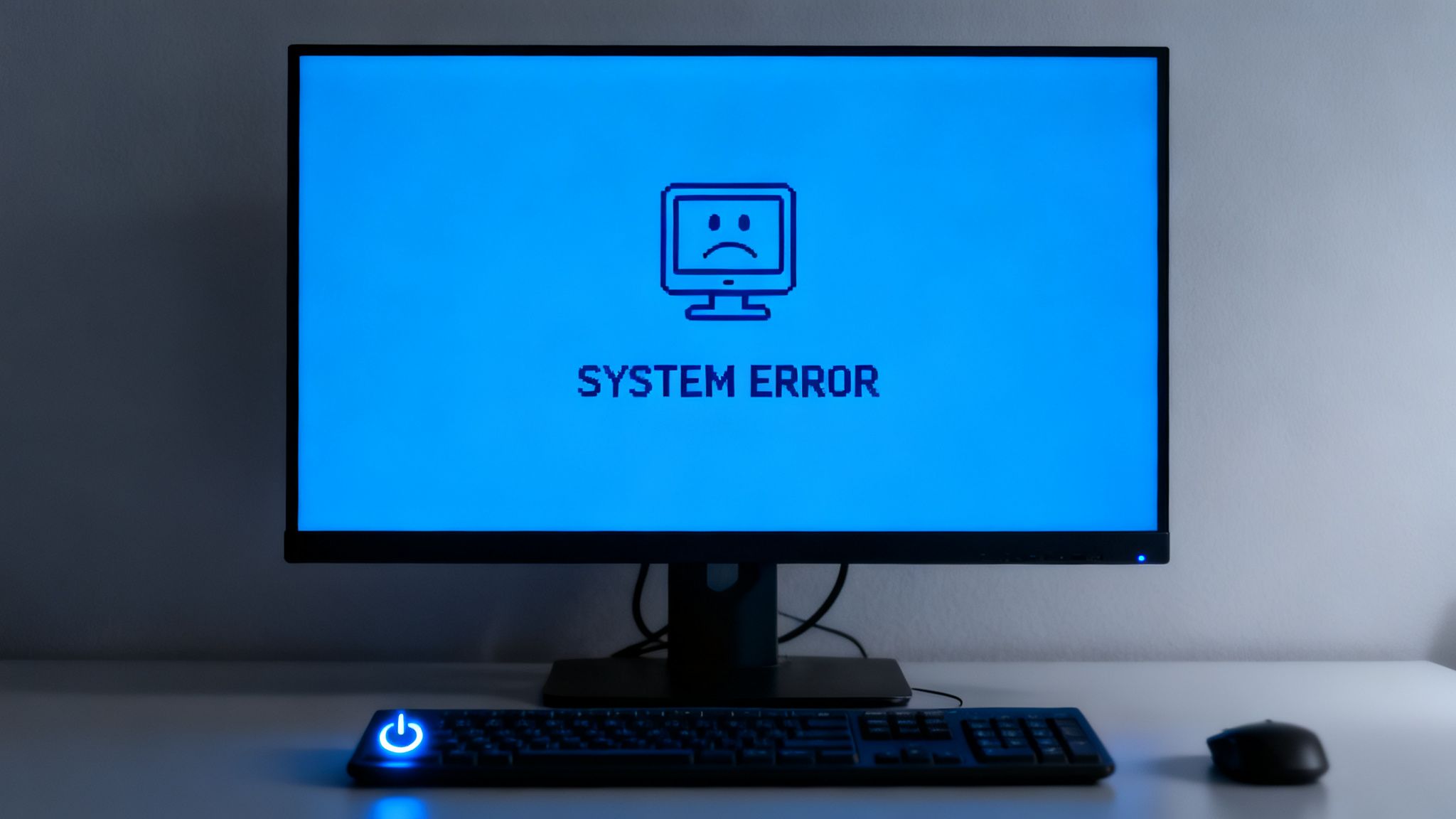
Malicious software can corrupt critical system files, interfere with device drivers, or cause memory conflicts that destabilize the entire operating system. Unlike hardware failures which may have a consistent trigger, malware-induced crashes often seem random at first, growing more frequent as the infection worsens and damages more system components.
Common Causes of Malware-Induced Instability
- Rootkits: This stealthy malware modifies core operating system files and drivers. When Windows tries to load these compromised components, it can trigger a fatal system error, often resulting in a BSOD during boot-up.
- Wiper Malware: An extremely destructive variant, wiper malware is designed to destroy data by overwriting partition tables or file systems. This damage can cause the system to crash repeatedly as it fails to access essential files.
- Kernel-Level Exploits: Some viruses exploit vulnerabilities in the operating system's kernel, the central component of the OS. This interference can cause unpredictable kernel panics and system-wide failures.
How to Investigate Frequent System Crashes
When a BSOD occurs, quickly note the error code displayed (e.g., "SYSTEM_SERVICE_EXCEPTION"). Booting your computer in Safe Mode can help determine if a third-party driver or startup program is the culprit, as this mode loads only essential system components. If the crashes stop in Safe Mode, malware is a likely cause. You can then attempt to run antivirus scans or use Windows System Restore to revert your computer to a point before the instability began.
Expert Insight: For businesses, consistent system stability is non-negotiable. Instead of spending valuable time troubleshooting individual crashes, a managed IT service provider like GT Computing can analyze system logs, identify the root cause of the instability, and implement a targeted removal and recovery plan to prevent data loss and restore operational integrity.
5. Strange or Unfamiliar Processes Running in Task Manager
While some malware slows your system down, other types are designed for stealth, operating silently in the background. A key way to spot these hidden intruders is by looking for strange or unfamiliar processes in your Task Manager. This is one of the more technical signs your computer has a virus, but it's incredibly effective at uncovering threats that have bypassed other defenses.

Malware often disguises itself with generic or legitimate-sounding names to avoid detection. It creates background processes that consume resources, steal data, or communicate with a command-and-control server, all while you remain unaware. For a business handling sensitive client or financial data, such a hidden process could be disastrous.
Common Examples of Malicious Processes
- Typosquatting: Malware may use names that are slight misspellings of legitimate processes, like "svch0st.exe" (with a zero) instead of "svchost.exe," or "WindowsUpdate.exe" running from a user's temporary folder.
- Process Injection: More advanced threats, like the Emotet trojan, can inject their malicious code into legitimate system processes such as
rundll32.exeorexplorer.exe, making them harder to spot. - Generic Names: Be wary of processes with vague or nonsensical names like
task.exe,install.exe, or random strings of letters and numbers (e.g.,a73hsd8.exe).
How to Check for Suspicious Processes
To inspect running processes, press Ctrl+Shift+Esc to open Windows Task Manager (or Activity Monitor on Mac). On the "Processes" or "Details" tab, look for anything you don't recognize. Right-click a suspicious process and select "Open file location." If it leads to a strange directory like C:Users[YourName]AppDataTemp instead of a system folder like C:WindowsSystem32, it is highly suspect. For a deeper dive, you can copy the process name and search it on websites like VirusTotal to see if it is known malware.
Expert Insight: For businesses, distinguishing between legitimate and malicious processes can be challenging without deep technical knowledge. Endpoint Detection and Response (EDR) solutions continuously monitor process activity, automatically flagging and isolating suspicious behavior that a manual check might miss. At GT Computing, we deploy these advanced tools as part of our managed security services to provide proactive threat hunting.
6. Changes to System Settings and Browser Configuration
Another insidious sign your computer has a virus is finding that your system or browser settings have been changed without your permission. Malware often modifies these configurations to weaken your defenses, ensure its own survival after a reboot, and control your online activity. For a business, unauthorized changes to security settings can be the first step in a much larger network breach.
Malicious software is designed to burrow deep into your system and create a persistent foothold. It achieves this by disabling security tools that could detect and remove it, altering network settings to redirect your traffic, and hijacking your browser to serve you malicious ads or phishing pages. These changes are not random; they are deliberate actions to take control of your device.
Common Malware-Related Setting Changes
- Security Software Disablement: Trojans and other advanced malware will often attempt to disable your antivirus or firewall. You might find that Windows Defender is turned off and greyed out, preventing you from re-enabling it.
- Browser Hijacking: This common tactic involves changing your browser's default homepage and search engine to a malicious or ad-filled alternative. It may also install unwanted toolbars or extensions that track your browsing activity.
- DNS and Hosts File Modification: A rootkit or spyware might alter your computer’s DNS settings or its "hosts" file. This allows it to redirect you from legitimate websites, like your bank's portal, to convincing-looking phishing sites to steal your credentials.
How to Check for Unauthorized Changes
Regularly audit your system's critical settings. In Windows, go to Settings > Update & Security > Windows Security to ensure your antivirus and firewall are active. Open your web browser's settings and verify that your homepage, search engine, and installed extensions are all ones you recognize and trust. For network settings, check your DNS configuration to ensure it's set to automatic or a trusted provider like Google (8.8.8.8) or Cloudflare (1.1.1.1).
Expert Insight: In a business environment, enforcing security policies is non-negotiable. Using tools like Windows Group Policy to lock down critical system and browser settings prevents both malware and users from making unauthorized changes that could create vulnerabilities. GT Computing implements these controls as a foundational part of our managed IT services to secure business networks.
7. Slow or Unresponsive Internet Connectivity
A sudden and persistent drop in internet speed is another one of the major signs your computer has a virus, especially when your connection should be strong. If websites take forever to load, videos buffer endlessly, and downloads crawl along despite a high-speed plan, malware could be saturating your bandwidth. This is distinct from typical ISP outages or weak Wi-Fi signals, as the slowness is isolated to the infected device.
Malicious software often uses your internet connection to communicate with its command-and-control server, send stolen data, or participate in attacks. This hidden network activity consumes your available bandwidth, leaving little for your legitimate tasks and crippling your online productivity.
Common Malware-Related Network Issues
- Botnet Malware: If your computer is part of a botnet, it could be used to launch Distributed Denial-of-Service (DDoS) attacks against other targets. This involves sending out massive amounts of network traffic, which will consume all of your upload and download bandwidth.
- Spyware and Data-Stealers: These infections continuously upload your sensitive information, browsing history, and keystrokes to a remote server. This constant background uploading can significantly slow down your entire connection.
- P2P Worms: Some worms spread by uploading copies of themselves to other computers on the internet. This can max out your upload bandwidth, which in turn severely impacts your download speeds and overall browsing experience.
How to Check for Bandwidth-Draining Malware
To investigate network issues, press Ctrl+Shift+Esc to open Task Manager and go to the "Performance" tab, then click "Ethernet" or "Wi-Fi". If you see high network activity even when you aren't actively using the internet, it’s a strong indicator of a problem. You can also switch to the "Processes" tab and sort by the "Network" column to identify which applications are consuming your bandwidth. If suspicious, unfamiliar processes are at the top, malware is the likely culprit.
Expert Insight: For businesses, unexplained network saturation on a single endpoint is a critical security alert. It could indicate data exfiltration in progress. GT Computing utilizes advanced network monitoring tools that can pinpoint anomalous traffic patterns and identify the source device, allowing for immediate isolation and remediation before a significant data breach occurs.
8. Repeated Antivirus Warnings and Failed Security Scans
Your antivirus software is your primary line of defense, and its alerts are one of the most direct signs your computer has a virus. When you see repeated warnings, notifications about detected threats, or scans that fail to complete, your system is actively telling you it's under attack. Ignoring these messages is equivalent to ignoring a smoke alarm; it allows malware to become more deeply embedded in your business's critical systems.
Sophisticated malware is often designed to neutralize the very tools meant to stop it. It may attempt to disable your antivirus, prevent it from updating its virus definitions, or block scans from running. This battle between your security software and the malware generates the very warnings you see. A persistent alert for the same threat means the antivirus is struggling to fully remove it.
Common Antivirus and Security Alert Scenarios
- Legitimate Detections: Your trusted antivirus, like Windows Defender or a third-party solution, repeatedly flags a file (e.g., "Trojan:Win32/Wacatac.B!ml"). This indicates a persistent infection that it cannot successfully quarantine or delete.
- Disabled Security Software: You discover your antivirus or firewall has been turned off without your permission. This is a classic tactic used by malware to operate undetected.
- Failed Scans: You try to run a full system scan, but it crashes, freezes, or fails to complete every time. Malware is actively interfering with the process.
- Fake Security Alerts: Malicious pop-ups, often disguised to look like alerts from Windows or a major antivirus brand, create panic to trick you into downloading more malware or paying for fake removal services.
How to Respond to Security Warnings
First, verify the source of the warning. If it comes directly from your installed, reputable antivirus software, take it seriously. Do not click on random browser pop-ups that claim your PC is infected. If your current antivirus cannot remove the threat, try running a scan in Windows Safe Mode with Networking. This starts your computer with minimal drivers and services, which can prevent the malware from loading and interfering. If the infection persists, specialized removal tools or professional assistance is required. You can explore our guide to find the best antivirus for small business to ensure your first line of defense is strong.
Expert Insight: In a business environment, a single workstation with persistent malware warnings can be the entry point for a network-wide breach. At GT Computing, we implement centralized security management that flags these persistent alerts across all company devices. This allows for immediate isolation of the affected machine and professional remediation before the threat can spread laterally to servers or other critical assets.
9. Unusual Account Activity and Unauthorized Access
A particularly alarming sign your computer has a virus is when you notice suspicious activity across your online accounts. Malware, especially spyware and information-stealing trojans, is designed to silently capture your usernames and passwords. Once these credentials are stolen, attackers can gain unauthorized access to everything from your business email to your financial portals, creating significant security and financial risks.
This type of breach extends far beyond a single compromised machine. A virus that steals credentials from one computer can enable an attacker to move laterally across a business network, access cloud data, and impersonate employees. The damage often goes unnoticed until fraudulent transactions occur or sensitive data is leaked.
Common Signs of Malware-Related Account Compromise
- Unexpected Notifications: Receiving password reset emails or login alerts for accounts you didn't try to access is a classic sign your credentials have been stolen.
- Unauthorized Changes: You might find new email forwarding rules in your Outlook or Gmail that you didn't create, or discover contacts have received messages you never sent.
- Failed Login Attempts: If you are suddenly locked out of an account due to too many incorrect password attempts, an attacker may be trying to brute-force their way in using credentials stolen from your machine.
How to Secure Your Accounts and Check for Breaches
Regularly review the account activity logs provided by major services like Microsoft 365, Google, and your online banking platform. Look for logins from unfamiliar IP addresses, locations, or devices. If you suspect a compromise, immediately change your password from a different, known-clean device. The single most effective defense is enabling two-factor or multi-factor authentication (MFA) on all critical accounts. Even if a virus steals your password, MFA prevents unauthorized access. You can learn more about why multi-factor authentication is essential for modern security.
Expert Insight: For businesses, monitoring identity and access management systems like Azure AD for impossible travel alerts or suspicious sign-in patterns is non-negotiable. At GT Computing, we implement enterprise-wide MFA and advanced threat detection to ensure that a single infected workstation cannot lead to a full-scale corporate data breach.
10. Unrecognized Files, Folders, and Program Installations
Discovering unfamiliar files, programs, or desktop icons is a deeply unsettling but clear sign your computer has a virus. Malware often installs itself without permission, leaving behind artifacts that look out of place. These rogue installations are not just clutter; they can be backdoors for attackers, spyware logging your keystrokes, or tools designed to steal sensitive business data.
Malicious software will often create files and folders with system-like names (e.g., "svchost.exe" in the wrong directory) or install itself in hidden locations like the AppData folder to evade detection. The presence of these unauthorized elements means an attacker has successfully breached your system's defenses and established a foothold.
Common Types of Unauthorized Installations
- Remote Access Trojans (RATs): These malicious programs are installed to give an attacker persistent, remote control over your computer. They won't appear as a normal application and are designed to run silently in the background.
- Adware and Browser Hijackers: Often bundled with "free" software, these install unwanted browser toolbars, extensions, or change your default search engine. They track your browsing habits and bombard you with ads.
- Spyware and Keyloggers: Disguised as legitimate utilities or hidden completely, these programs record your activity, including passwords, financial information, and confidential client communications, sending it all back to a malicious server.
How to Check for Unwanted Software and Files
Start by carefully reviewing your list of installed applications. On Windows, go to Settings > Apps > Apps & features. Scrutinize the list for any program you don't remember installing. Be wary of generic-sounding "PC optimizer" or "system cleaner" tools you don't recognize. Additionally, check your browser extensions and remove any that you did not intentionally add. For a deeper look, a tool like Microsoft's Autoruns can reveal every program and service configured to start automatically.
Expert Insight: In a business environment, unauthorized software installation is a critical security breach. We leverage endpoint management tools at GT Computing to maintain a strict inventory of approved software. Any deviation from this approved list automatically triggers a security alert, allowing us to isolate the affected machine and neutralize the threat before it can spread across the network.
10-Point Comparison: Computer Virus Signs
| Item | 🔄 Implementation complexity | ⚡ Resource requirements | 📊 Expected outcomes | 💡 Ideal use cases | ⭐ Key advantages |
|---|---|---|---|---|---|
| Unexpected System Slowdowns and Performance Degradation | Low–Moderate: baseline + monitoring setup | System monitoring agents, logging storage, performance baselines | Detect high CPU/RAM/disk use; early infection indicator | Endpoint monitoring for desktops and laptops | Highly noticeable to users; easy to quantify |
| Unexpected Pop-ups and Aggressive Advertising | Low: browser hardening and user training | Ad-blockers, web filtering, browser extension audits | Immediate visual indicators of adware/PUPs | User-facing workstations, public kiosks | Visually obvious; quick to block or remove |
| Unauthorized Network Activity and Data Usage Spikes | High: network visibility and analytics needed | NDR/NIDS, firewalls, flow logs, security analysts | Detect exfiltration/C2; prevent data breaches | Enterprise networks, servers, regulated environments | Early detection of data theft; scalable visibility |
| Frequent Crashes, BSOD, and System Instability | Moderate–High: forensic diagnostics and recovery | Forensic tools, safe-mode scans, backups, repair expertise | Clear sign of severe compromise or corruption | Critical systems showing unpredictable reboots | Signals urgent attention; diagnostic error codes |
| Strange or Unfamiliar Processes Running in Task Manager | Moderate: process analysis and threat intelligence | Process Explorer/EDR, signature/behavioral databases | Direct evidence of malicious processes; remediation targets | Endpoint incident response and EDR investigations | Concrete, searchable process-level indicators |
| Changes to System Settings and Browser Configuration | Low–Moderate: audits and enforcement policies | Configuration management, GPOs, browser policy tools | Reveals persistence or compromise vectors | Managed endpoints, enterprise policy-controlled devices | Often reversible; clear indicator of compromise |
| Slow or Unresponsive Internet Connectivity | Low–Moderate: triage to isolate device vs ISP | Speed tests, router logs, basic network monitors | Identifies bandwidth-saturating malware impacts | Shared office networks, bandwidth-sensitive sites | User-noticeable; correlates with network alerts |
| Repeated Antivirus Warnings and Failed Security Scans | Low: respond to alerts and escalate persistent cases | Up-to-date AV, specialized removal tools, analyst support | Actionable detections; exposes known threats | Automated defense layers, initial incident triage | Vendor-validated alerts; direct remediation steps |
| Unusual Account Activity and Unauthorized Access | Moderate–High: identity monitoring and forensics | SIEM, MFA, log analytics, identity protection tools | Confirms credential compromise; prevents lateral movement | Cloud services, critical accounts, enterprise identity | Direct evidence of account compromise; enables containment |
| Unrecognized Files, Folders, and Program Installations | Low–Moderate: manual review + tooling | Autoruns, EDR, file reputation/virus-scanning services | Finds unauthorized installs/backdoors; cleanup candidates | New machine audits, post-infection cleanup | Tangible artifacts to remove; easy to document |
Stay Proactive: Professional Support Is Your Best Defense
Navigating the digital landscape requires constant vigilance. Throughout this guide, we've explored the ten most critical signs your computer has a virus, from sudden performance degradation and a barrage of pop-up ads to unauthorized network activity and frequent system crashes. Each of these symptoms serves as a vital warning signal, an alert that your system's integrity has been compromised. Recognizing them is the essential first step in a much larger process of containment, removal, and recovery.
The ability to spot unfamiliar processes in your Task Manager, notice changes to your browser's homepage, or identify suspicious files is more than just a technical skill; it's a fundamental part of modern digital hygiene. For businesses, especially in sensitive fields like law or healthcare, a single infected endpoint can quickly escalate into a network-wide breach, leading to catastrophic data loss, reputational damage, and significant financial penalties. The stakes are simply too high to ignore these red flags.
From Recognition to Resolution: Bridging the Gap
While this article equips you with the knowledge to identify potential threats, the journey from detection to complete eradication is often complex. Running a standard antivirus scan is a crucial first response, but it may not be sufficient for advanced or deeply embedded malware. Rootkits, polymorphic viruses, and sophisticated ransomware are designed to evade basic detection and can persist even after a seemingly successful cleanup.
Attempting a manual removal without expert knowledge can often make a bad situation worse. Deleting the wrong system files can render your computer inoperable, while incomplete removal leaves backdoors open for future attacks. This is where the true value of professional IT support becomes clear. It's not just about solving the immediate problem; it's about ensuring the threat is completely neutralized without causing collateral damage to your critical data and applications. Understanding the specific tactics of different malware types is also key. For example, knowing the answer to How to Prevent the Trojan Horse Virus gives you a strategic advantage in blocking one of the most common infection vectors used by cybercriminals.
The Strategic Advantage of Proactive Partnership
The most effective cybersecurity strategy is not reactive, but proactive. Waiting until you see the signs of an infection means the damage has already begun. A proactive approach involves establishing a robust defense system before an attack occurs. This includes:
- Managed Antivirus and Endpoint Detection: Deploying and managing enterprise-grade security software that goes beyond basic virus scanning.
- Regular System Patching: Ensuring all operating systems and applications are consistently updated to close known security vulnerabilities.
- Network Monitoring: Actively monitoring network traffic for suspicious activity that could indicate an intrusion.
- Employee Training: Educating your team on how to spot phishing emails and avoid risky online behaviors.
For most small and mid-sized businesses, managing these tasks internally is impractical and inefficient. Partnering with a managed IT services provider like GT Computing transforms your cybersecurity from a reactive chore into a strategic asset. Instead of worrying about potential threats, you can focus on your core business operations, confident that a team of experts is safeguarding your digital infrastructure. This partnership provides not only threat resolution but also invaluable peace of mind, knowing that your systems are resilient, your data is secure, and your business is protected against the ever-evolving landscape of cyber threats.
Don't wait for a virus to disrupt your operations. GT Computing offers expert virus removal, data recovery, and proactive managed IT services to keep your systems secure and running smoothly. Trust the professionals to handle your IT challenges so you can focus on your business.
Keep your business running without IT headaches.
GT Computing provides fast, reliable support for both residential and business clients. Whether you need network setup, data recovery, or managed IT services, we help you stay secure and productive.
Contact us today for a free consultation.
Call 203-804-3053 or email Dave@gtcomputing.com