


We've all been there: that sinking feeling when the low battery warning flashes just minutes before a big meeting or as you're putting the final touches on a critical report. When you're racing against the clock, you don't have time to dig through complex system settings.
You need results, fast.
Luckily, some of the most effective ways to squeeze more life out of your laptop are also the quickest. These are the go-to tricks we use in the field to get our clients through those crucial moments.
Quick Fixes for Immediate Battery Savings
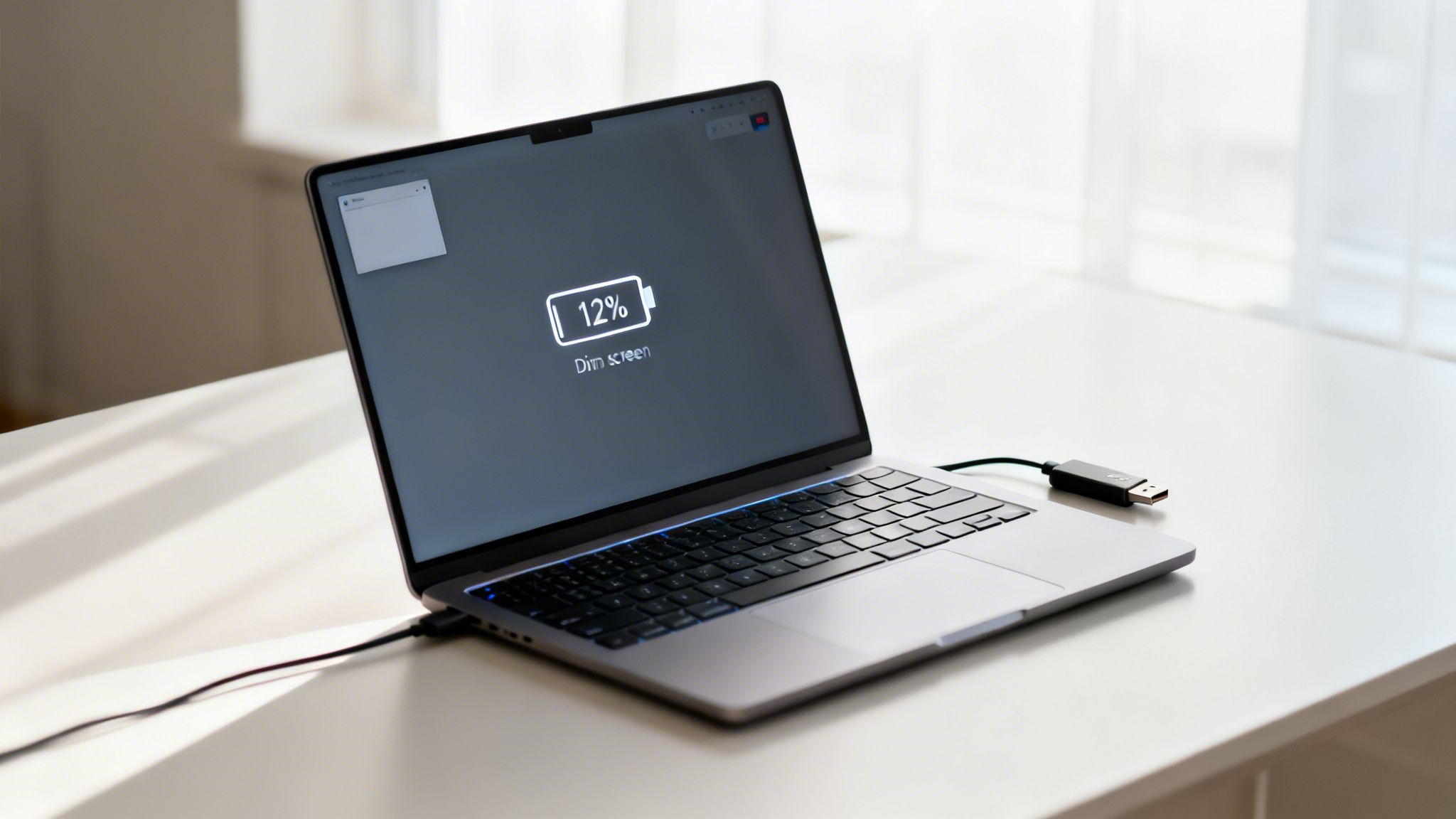
Before diving into deeper optimizations, let's cover the low-hanging fruit. These adjustments are simple, take only a few seconds, and can collectively add hours to your runtime.
For a quick reference, here are the simple changes you can make right now for an immediate impact.
Instant Battery Life Boosters
| Action | Estimated Battery Savings | Best For |
|---|---|---|
| Dim Your Screen | High (1-4 hours) | Everyone. This is the single most effective trick. |
| Turn Off Wi-Fi & Bluetooth | Medium (30-60 minutes) | Working offline on documents or presentations. |
| Close Unused Apps | Medium (20-45 minutes) | Multitaskers with many apps running in the background. |
| Disconnect USB Devices | Low to Medium (15-40 minutes) | Users with external drives, webcams, or phones charging. |
| Turn Off Keyboard Backlight | Low (15-30 minutes) | Working in a well-lit environment where the backlight isn't needed. |
These small tweaks add up, giving you the extra time you need to finish your work without being tethered to a wall outlet.
Dim Your Display—The #1 Battery Hog
Your laptop's beautiful, bright screen is by far its biggest power user. It's no exaggeration to say it can be responsible for up to 40-60% of your battery drain. The single most impactful thing you can do for your battery is to lower the screen brightness.
You don't need to work in the dark. Just dropping the brightness to around 50% is often enough to add 2-4 hours of life to a typical laptop's 4-12 hour runtime, and your eyes will barely notice the difference. We’ve seen this make a huge difference in professional settings, like a dental practice where laptops are used for patient records all day long. A simple brightness tweak means their devices last the entire workday.
Finding this setting is a breeze:
- Windows: Press the Windows key + A to open the Quick Settings panel and use the brightness slider. You can also use the dedicated function keys on your keyboard (often F4/F5 or F5/F6).
- macOS: Use the F1/F2 keys on the top row of your keyboard or find the slider in the Control Center.
Turn Off Lights and Unplug Peripherals
That sleek backlit keyboard looks great, but it’s a silent battery drain. If you’re working during the day, you probably don’t need it. Turning it off can tack on another 15-30 minutes of runtime—enough to get you through that last email. Look for a dedicated function key on your keyboard to toggle it.
Next, look at what’s plugged into your USB ports. While an external mouse won't make much difference, other devices are surprisingly power-hungry. External hard drives, high-definition webcams, and especially a phone you're charging from the laptop are all sipping valuable power. Unplug anything you aren't actively using.
Key Takeaway: Every light, feature, and connected device consumes a bit of your battery. By consciously disabling non-essentials like keyboard backlights and unplugging idle peripherals, you reclaim precious power for the tasks that actually matter.
Tame Your Apps and Wireless Connections
Finally, do a quick audit of what’s running on your machine. Do you really need 30 browser tabs open? Is Spotify running in the background while you’re on a video call? Each application and process consumes CPU cycles, which in turn drains your battery. Closing what you don't need isn't just tidy—it's a direct way to extend your runtime.
Here are a couple more things to check:
- Kill unnecessary connections: If you're just typing up a document, you don't need Wi-Fi or Bluetooth running. Toggling on Airplane Mode is the fastest way to disable all wireless radios at once and can save a surprising amount of power.
- Hunt down energy hogs: On Windows, press Ctrl+Shift+Esc to open Task Manager. On a Mac, open Activity Monitor. Both tools have an "Energy Impact" or "Power Usage" column that shows you exactly which apps are draining your battery the most.
These quick fixes are great for immediate gains, but true optimization goes deeper. For more advanced techniques, explore our guide on https://www.gtcomputing.com/how-to-optimize-computer-performance/. If you want to become a true battery-saving pro, check out this comprehensive guide to making your laptop's battery life last longer.
Mastering Your System Power Settings
While the quick-hit settings are a great start, the real power—pun intended—lies in fine-tuning your operating system’s power settings. Your laptop likely shipped with a generic “Balanced” plan, which is fine, but it’s a compromise. By digging into these settings, you can create a custom profile built for endurance, especially when an outlet is nowhere in sight.
Think of it as giving your laptop a clear set of instructions for when it's running on battery. For a professional on the go, whether you're drafting contracts between meetings or managing patient files on a tablet PC, this is about preventing that dreaded low-battery panic. Let's go beyond the factory defaults.
Customizing Power Plans in Windows
Windows gives you an incredible amount of control over how your laptop uses its battery. It’s about more than just clicking the battery icon and sliding it to “Power saver.” You can get granular and dictate exactly how components like your processor and hard drive behave.
The goal is to create a custom power plan that deliberately trades a small, often unnoticeable, amount of peak performance for a significant boost in runtime.
Here’s where to find these advanced settings:
- Pop open the Start Menu and type in "Choose a power plan" or "Edit power plan".
- The old-school Control Panel window will appear. Find the plan you want to use as a base (I’d suggest Power saver) and click "Change plan settings" next to it.
- On the next screen, look for "Change advanced power settings". This is where the magic happens.
A new window will open, presenting a tree of hardware components. For instance, navigate to “Processor power management.” Inside, you can set the “Maximum processor state” when on battery. I often tell my clients to dial this back to 80-90%. For everyday work like email, browsing, and Office documents, you will never feel the difference, but your battery certainly will.
Key Settings to Tweak for Maximum Battery Savings
Diving into the advanced settings can feel like stepping into a jet cockpit—buttons and dials everywhere. Don't get overwhelmed. You only need to focus on a few key areas to see the biggest impact.
These are the first settings I adjust for my clients to squeeze out more battery life:
- Hard disk: Look for "Turn off hard disk after" and set it for a short duration, like 5-10 minutes of inactivity. For older laptops with traditional spinning hard drives (HDDs), this is a huge energy saver. Keep in mind, this won’t do much for modern Solid-State Drives (SSDs) as they don't have moving parts.
- Wireless Adapter Settings: Under "Power Saving Mode," make sure it's set to "Maximum Power Saving." This lets your Wi-Fi chip take a little nap when it isn't actively sending or receiving data.
- PCI Express: Find "Link State Power Management" and switch it to "Maximum power savings." This setting governs a high-speed internal bus that connects various components, and letting it power down when idle saves a surprising amount of juice.
By making these small adjustments, you're essentially creating a custom "endurance mode" for your machine. It's a proactive strategy that works much better than frantically dimming your screen when the 10% battery warning pops up.
Using Low Power Mode on a Mac
If you're a macOS user, Apple has made this process much simpler with its fantastic “Low Power Mode.” It’s a single-click solution that intelligently dials back system resources to extend your runtime without you having to manually configure a thing.
You’ll find it in System Settings > Battery. Just flip the switch. Once you do, Low Power Mode automatically:
- Reduces your CPU's clock speed.
- Slightly dims screen brightness.
- Pauses background tasks, like automatic updates and Mail fetch.
This mode is an absolute lifesaver on long flights or those days when you realize your charger is still on your desk at home. It tells your Mac to prioritize what you're actively doing and put everything else on the back burner, keeping you up and running for hours longer.
Keep your business running without IT headaches.
GT Computing provides fast, reliable support for both residential and business clients. Whether you need network setup, data recovery, or managed IT services, we help you stay secure and productive.
Contact us today for a free consultation.
Call 203-804-3053 or email Dave@gtcomputing.com
.
Developing Smart Charging Habits for Long-Term Health
It’s great to squeeze an extra hour of work out of your laptop today, but what about next year? Or the year after that? Making your battery last is about playing the long game, and it starts with ditching some old, outdated advice. If you've ever heard you should drain your battery to 0%, forget it—the science behind modern lithium-ion batteries tells a completely different story.
The truth is, your daily habits have a massive impact on your battery’s lifespan. I've seen firsthand how simple, consistent adjustments can mean the difference between replacing a battery in two years or enjoying reliable, untethered power for four or more.
The 20-80 Rule: Your Battery's Sweet Spot
If you take away only one thing, let it be this: avoid the extremes. The secret to minimizing stress on your battery and making it last is to keep its charge level between 20% and 80%.
Think of it this way: pushing your battery to a full 100% charge is like constantly holding a muscle in a tense position. It puts the cells under high-voltage stress, which speeds up chemical decay. On the flip side, letting it drop to 0% puts a different kind of strain on the battery. Sticking to that 20% to 80% sweet spot is the single most effective habit you can build for long-term battery health.
Lithium-ion batteries are generally rated for 300-500 full charge cycles before their capacity degrades noticeably. I work with professionals like lawyers and dentists who rely on their devices daily, and those who adopt the 20-80 habit often see their laptops last 4-6 years, easily beating the typical 2-3 year lifespan. In fact, many modern laptops now include features to automatically limit the charge to 80%, which can add up to 50% more charge cycles. That translates to an extra year or two of dependable power, all from a simple software setting. If you're interested in the deep-dive science, rdbatteries.com has some great resources on how batteries age.
Let Your Laptop Do the Work: Automated Battery Health
Thankfully, you don't need to babysit your battery percentage all day. Most modern laptops have built-in tools designed to manage battery health for you.
- On a Mac: Head into System Settings > Battery, find "Battery Health," and make sure "Optimized Battery Charging" is toggled on. Your Mac will learn your daily routine and hold the charge at 80% until just before it thinks you’ll need to be fully powered up.
- On a Windows PC: Manufacturers like Dell, HP, and Lenovo usually bundle their own power management software. Open it up and look for settings with names like "Battery Charge Limit," "Conservation Mode," or "Battery Care Function." From there, you can set the maximum charge to 80%.
Turning these features on is a true set-it-and-forget-it fix that enforces good charging habits without you having to think about it.
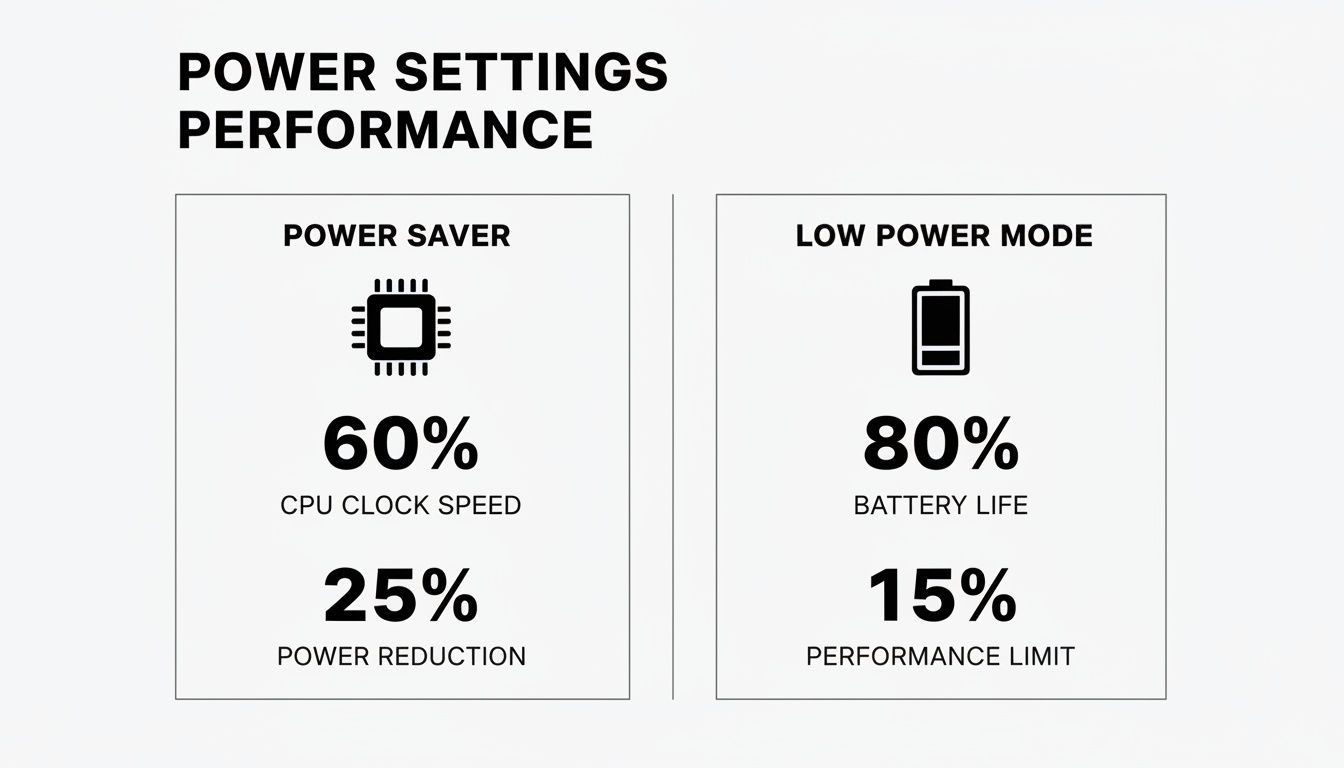
As this infographic shows, simple settings that limit performance don't just give you more time now—they also reduce the overall strain on your system, which contributes to better long-term health.
Keep It Cool: Heat Is Your Battery's Worst Enemy
Beyond how you charge, nothing kills a battery faster than heat. High temperatures cause irreversible damage to the battery's internal chemistry, permanently reducing its ability to hold a charge.
One of the most common mistakes I see is people using their laptop on a soft surface like a bed, pillow, or couch. This blocks the air vents on the bottom and sides of the machine, trapping heat. The fans then have to spin like crazy to compensate, which, ironically, drains the battery even faster.
Pro Tip: Always use your laptop on a hard, flat surface. A desk or table is perfect. If you want to go the extra mile, a simple laptop stand is a fantastic investment. It dramatically improves airflow and can make a real difference in keeping your device cool and preserving its battery.
To Calibrate or Replace: Knowing the Difference
Over time, the software that reports your battery percentage can drift out of sync with the battery's actual condition. This is why your laptop might suddenly die when it still shows 20% left. A calibration can help resync the software with the hardware.
Here's a quick guide to calibration, but do this sparingly—maybe once or twice a year at most:
- First, charge your laptop to 100%.
- Leave it plugged in for at least two more hours.
- Now, unplug it and use it until the battery is completely drained and the device shuts down on its own.
- Let it sit for a few hours to ensure any residual charge is gone.
- Finally, charge it back to 100% in one uninterrupted session.
However, calibration isn't a miracle cure. No amount of software tweaking can fix a battery that's physically worn out. If your runtime has plummeted, the laptop shuts down unexpectedly, or you notice the case is physically bulging or swelling, it’s a clear sign the battery is failing. At that point, a replacement is non-negotiable for both performance and safety.
If you suspect your battery is on its last legs, it's best to get it checked out. We offer professional diagnostics and battery replacement services to help you get your device back in top shape safely.
Keep Your Software Lean and Updated for Better Battery Life
It’s easy to get caught up tweaking settings, but one of the most powerful ways to extend your laptop's battery life is often overlooked: keeping its software up-to-date. The efficiency of your machine isn’t just about the physical parts inside; it’s heavily influenced by the code it runs.
Companies like Microsoft and Apple are constantly refining their operating systems. These updates aren’t just about new emojis or features—they frequently contain significant power management improvements that fine-tune how your hardware and software work together, squeezing more life out of every charge.
For business owners, this is a force multiplier. A fully updated fleet of laptops translates to better security, snappier performance, and, most importantly, more time for your team to work without being tethered to a wall outlet.
The Hidden Power in OS Updates
Think of your operating system as the first line of defense against poor battery performance. Developers are always hunting for ways to make their software run more efficiently on the hardware you already own.
Here's where to find these crucial updates on the main platforms:
- Windows: Head over to Settings > Windows Update and click "Check for updates." Microsoft often bundles battery and performance enhancements right into its regular security patches.
- macOS: Open System Settings > General > Software Update. Apple is well-known for baking deep power optimizations into each new version of macOS, making these updates well worth your time.
By staying current, you’re getting more than just bug fixes. You’re getting the direct benefit of countless engineering hours spent making your specific device last longer on a single charge.
Don’t Forget Firmware and BIOS Updates
Digging a bit deeper than the operating system, you'll find another critical piece of software most people never think about: firmware (also known as BIOS or UEFI). This is the base-level code that fires up when you first power on your laptop, controlling the fundamental behavior of its physical hardware.
Manufacturers like Dell, HP, and Lenovo regularly release firmware updates packed with power-saving improvements. An update might teach the processor to enter a deeper, more efficient sleep state or manage fan speeds more intelligently—both of which conserve precious battery power.
Expert Tip: These updates are almost never found through your standard OS update tool. You’ll need to go directly to your laptop manufacturer's support website, find your specific model, and download the latest BIOS/UEFI update from their drivers section.
Eliminate Bloatware: The Silent Battery Killer
Remember all those applications that came pre-installed on your laptop? This "bloatware" can be a major, silent drain on your battery. While a few might be handy, many are just trial versions or background utilities that quietly consume CPU cycles and battery life without you ever realizing it.
A leaner software environment is always a more efficient one. Taking just a few minutes to clean house can make a surprisingly big difference.
Here's a quick process for ditching bloatware:
- Find Unused Apps: On Windows, navigate to Settings > Apps > Installed apps. On a Mac, just open your Applications folder.
- Review What's There: Sort the list to see what you haven't used in a while, or just scroll through and look for programs you don't recognize or need.
- Uninstall Fearlessly: If you haven't touched an app in months and a quick search confirms it isn't a critical system driver, get rid of it.
Removing just a handful of these unneeded programs frees up system resources and stops them from slowly draining your battery all day long. For a deeper dive into this topic, see our guide on proper software update management.
Keep your business running without IT headaches.
GT Computing provides fast, reliable support for both residential and business clients. Whether you need network setup, data recovery, or managed IT services, we help you stay secure and productive.
Contact us today for a free consultation.
Call 203-804-3053 or email Dave@gtcomputing.com
.
Managing Laptop Batteries Across Your Entire Business
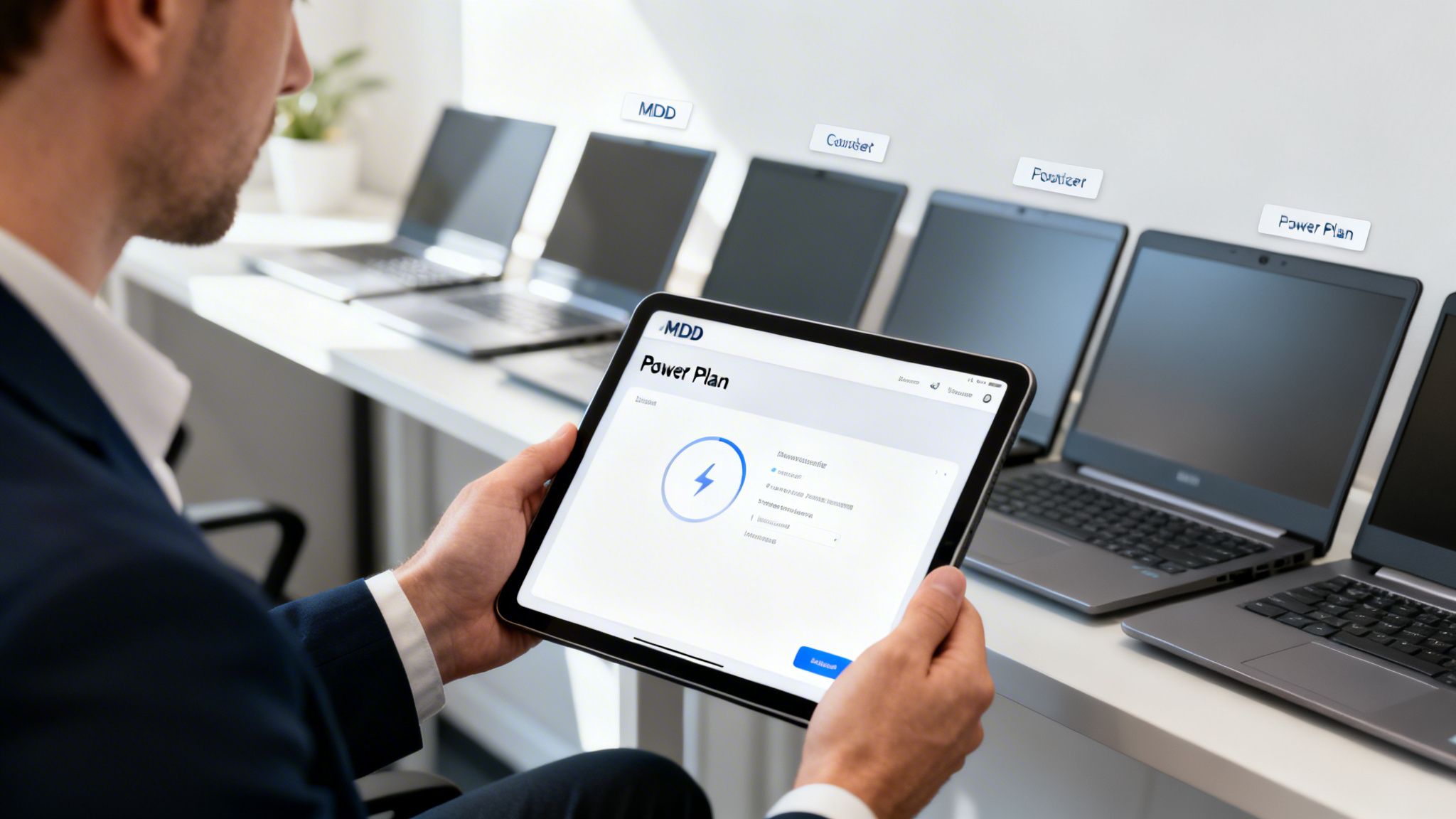
Keeping your own laptop running all day is one thing. But making sure an entire company’s worth of them stays productive is a completely different ballgame. As an IT manager or business owner, you know you can't rely on every employee to diligently follow a best-practices memo. People’s habits are all over the map, and that inconsistency leads straight to dead batteries and a flood of support tickets.
The real goal is to get ahead of the problem. It’s about shifting your mindset from putting out fires to building a strategy that keeps your team powered up and working. This turns battery life from a daily annoyance into a real business asset, boosting productivity and getting the most out of the hardware you've already paid for.
Centralize Control with GPO and MDM
If you want consistency, you have to take device settings out of the hands of individual users. For any business running on Windows, Group Policy Objects (GPO) are your best friend. An IT admin can use GPO to design a single, battery-optimized power plan and push it out to every laptop in the company.
This lets you enforce all those smart settings we talked about—like aggressive sleep timers for displays and hard drives—and lock them down so they can't be changed. You can even get specific, creating different policies for different teams. For instance, the laptops your traveling sales team uses could have a much more conservative power plan than the machines that rarely leave a desk in the finance department.
For companies with remote workers or a mix of different operating systems, a Mobile Device Management (MDM) platform like Microsoft Intune accomplishes the same thing. MDM gives you fine-grained control to deploy consistent power profiles to every enrolled device, whether it's running Windows, macOS, or even ChromeOS.
Stop hoping your team follows the rules. Centralized policies guarantee every company laptop is configured for peak efficiency. That consistency is the secret to extending the mobile workday for your entire organization.
Switch to Health-Based Hardware Refreshes
For years, the standard playbook was to replace all company laptops on a rigid schedule, usually every three or four years. This approach is simple, but it’s incredibly wasteful. A laptop that lives on a docking station might have a perfectly good battery after four years, while a device used by a field technician could be on its last legs after just two.
A far more effective—and budget-friendly—approach is to base your refresh cycle on battery health analytics. Modern MDM and asset management tools can pull real-world data on each battery's maximum capacity and cycle count. By watching these numbers, you can pinpoint exactly which devices are failing and need to be replaced, instead of tossing out perfectly good hardware just because it hit an arbitrary age.
This data-first approach pays off in several ways:
- Slash Capital Spending: You stop buying new laptops until they are actually needed.
- Prevent Downtime: You can proactively replace a dying battery before it fails, saving your employee from a day of lost productivity.
- Forecast Budgets Accurately: With hard data on your fleet's health, predicting future hardware expenses becomes much easier.
Why Business-Grade Laptops Have a Lower Total Cost
When it’s time to buy new hardware, it can be tempting to grab consumer-grade laptops to save a little money upfront. But from a total cost of ownership perspective, business-grade machines from lines like Dell’s Latitude, HP’s EliteBook, and Lenovo’s ThinkPad are almost always the smarter long-term investment.
The reason often comes down to the battery. These machines are built for serviceability. Many still feature user-replaceable batteries, which has become a true rarity in the consumer world. When a battery inevitably wears out, you can perform a quick swap yourself. A $100 battery replacement is a whole lot better for your bottom line than buying a $1,500 new laptop, especially when you multiply that across your entire team.
Ultimately, smart battery management at scale comes down to a combination of savvy procurement, centralized policy enforcement, and data-driven decision-making. Put these pieces in place, and you’ll ensure your team can stay productive from anywhere, all while getting the maximum value and lifespan from your technology.
Keep your business running without IT headaches.
GT Computing provides fast, reliable support for both residential and business clients. Whether you need network setup, data recovery, or managed IT services, we help you stay secure and productive.
Contact us today for a free consultation.
Call 203-804-3053 or email Dave@gtcomputing.com
.
Common Questions About Laptop Battery Life
We've walked through a lot of ways to get more out of your laptop's battery, from quick software tweaks to long-term hardware strategies. But I find that the same handful of practical, day-to-day questions always seem to pop up.
This is where we tackle those common uncertainties. Think of it as a quick reference guide based on the questions we hear most often from our clients.
Is It Bad to Leave My Laptop Plugged In All The Time?
This is easily the most common question, and the answer isn't a simple yes or no. Modern laptops are smart enough to stop charging once they hit 100%, so you don't have to worry about "overcharging" in the traditional sense. The real issue is keeping the battery at a full 100% charge for long periods.
Holding a battery at that maximum voltage creates stress on its internal cells and can generate a little extra heat. Both of these things accelerate the chemical aging that naturally degrades batteries over time.
The best approach is to use your laptop's built-in battery health or charging optimization features. Most modern devices let you set a maximum charge limit—usually around 80%—which is the sweet spot for preserving long-term health. If your laptop doesn't have that setting, just make it a habit to unplug it every now and then. Let it run down to 40% or so before plugging it back in. At GT Computing, we can often configure these settings across an entire fleet of business laptops to maximize their lifespan and save on replacement costs down the road.
Will Replacing My Hard Drive with an SSD Improve Battery Life?
Yes, absolutely. This is one of the single most impactful hardware upgrades you can make for both performance and battery life. A traditional Hard Disk Drive (HDD) is a mechanical device with a spinning platter and a moving arm—all that physical movement burns a surprising amount of power.
A Solid-State Drive (SSD), however, has no moving parts. It uses flash memory, making it incredibly fast and much more energy-efficient. An SSD can consume up to 80% less power than an old-school HDD. The moment you make the switch, you'll notice everything is faster, and your laptop can suddenly work for much longer away from the wall outlet.
How Can I Tell When It Is Time to Replace My Laptop Battery?
Your laptop will almost always give you some clear signs that its battery is on its last legs. The operating system itself is your first line of defense.
- On Windows: Open the Command Prompt and type
powercfg /batteryreport. This command generates a handy HTML file that shows the battery's original designed capacity compared to what it can actually hold now. A big drop-off is a clear red flag. - On macOS: Head to System Settings > Battery and look at the "Battery Health" information. Your Mac will tell you if the condition is "Normal" or if "Service Recommended."
Beyond the diagnostics, just pay attention to the practical signs. If your fully charged laptop dies in an hour when it used to last four, or if it shuts down unexpectedly at 20% charge, it's probably time. And if you ever notice the case of your laptop physically bulging, that's a serious problem.
A bulging or swollen battery is a safety hazard and should be addressed immediately. Do not continue to use or charge the device. Contact a professional like GT Computing for a safe inspection and replacement.
Does Turning Off Wi-Fi and Bluetooth Really Make a Difference?
It absolutely does, especially when you're trying to squeeze out every last drop of power. Your laptop's wireless radios are always on the job, scanning for networks and available devices. It's a small but constant power drain that adds up.
If you're just typing up a report, working on a spreadsheet, or doing anything else offline (like on a flight), switching on Airplane Mode is an incredibly effective trick. It’s not uncommon to gain an extra 30 to 60 minutes of runtime from this one simple click. For a more structured approach to managing device health and longevity in a business environment, a solution like the LifeExtenderv1 program can help standardize these best practices.
Keep your business running without IT headaches.
GT Computing provides fast, reliable support for both residential and business clients. Whether you need network setup, data recovery, or managed IT services, we help you stay secure and productive.
Contact us today for a free consultation.
Call 203-804-3053 or email Dave@gtcomputing.com.
When DIY Fixes Aren’t Enough
Let's be realistic. You can tweak settings and follow best practices all day, but sometimes a battery problem is more than just a quick fix. If you’ve worked your way through this guide and your laptop still can’t make it through a meeting without a charger, it’s a sign of a deeper issue.
At some point, hardware just gives out. Batteries have a finite number of charge cycles, and eventually, they simply can't hold a charge like they used to. You might also be dealing with a tricky software issue, like a hidden background process that’s quietly eating up your power reserves.
Bottom line: If you’re spending more time fighting with your battery than getting work done, it's time to call in a professional.
For a business, this problem gets even more complicated. Trying to manage power settings and battery health across an entire fleet of laptops is a major headache. That’s where expert support can save you from the constant disruption of dying devices and frustrated employees.
Don’t let IT headaches slow your business down.
At GT Computing, we deliver prompt, reliable IT support for homes and businesses. From managing your company’s devices to network setups and data recovery, we focus on keeping your technology secure and productive so you can focus on your work.
Get in touch for a free consultation.
Call 203-804-3053 or email Dave@gtcomputing.com.