


So, what exactly is an Apple Fusion Drive? Think of it as a smart, hybrid storage system that marries the lightning speed of a Solid-State Drive (SSD) with the huge storage capacity of a traditional Hard Disk Drive (HDD). To your Mac, these two separate drives look and act like one single, unified volume, giving you a taste of the best of both worlds.
Understanding The Hybrid Storage Solution
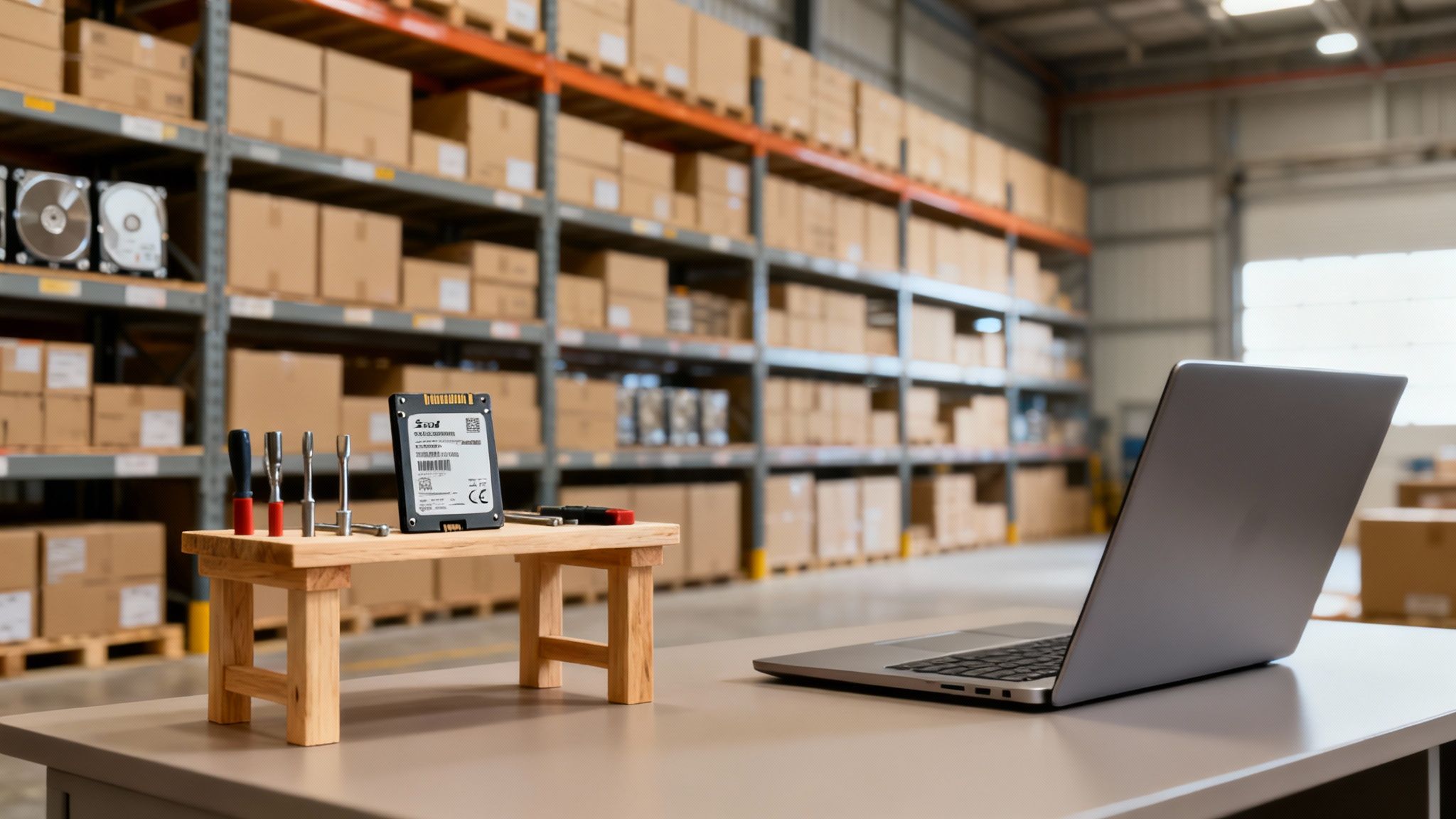
To really get a feel for how a Fusion Drive works, let's use a simple workshop analogy.
A classic HDD is like a giant warehouse. It can hold tons of stuff, but finding one specific tool means a long walk down endless aisles. An SSD, in contrast, is like a small, perfectly organized workbench right at your fingertips, holding only the tools you use constantly.
A Fusion Drive gives you both that quick-access workbench (the SSD) and the massive warehouse (the HDD), with a clever system that automatically decides which tools should be kept close at hand.
How It Delivers Performance and Capacity
This clever combination works behind the scenes, managing your data without you having to lift a finger. When you first start up a Mac with a Fusion Drive, everything—the operating system, your apps, and your files—gets placed on the faster SSD portion for an initial speed boost.
Over time, macOS pays attention to how you work. It figures out which applications and documents you open most often (your "hot" data) and makes sure they stay on the speedy SSD. Things you rarely touch, like old project files or that huge photo library from years ago, are quietly moved over to the spacious HDD.
This process is called automatic tiering, and it's completely seamless. When you look in Finder, you just see one drive with one pool of available space. There’s no need to manually shuffle files around to optimize performance; the system does it all for you.
The goal is simple: deliver a user experience that feels as snappy as an SSD for your daily grind, but with the massive, budget-friendly storage of an old-school hard drive.
This setup hits a sweet spot, particularly for people who need a lot of room for things like videos and large design files but don't want to sacrifice the quick boot times and app launches they've come to expect. It's designed to give you that responsive feel without the premium price tag of a multi-terabyte SSD.
To get a clearer picture, here's a quick breakdown of what makes a Fusion Drive tick.
Fusion Drive At A Glance
| Attribute | Description |
|---|---|
| Technology | A hybrid drive combining a small SSD and a large HDD into a single logical volume. |
| Core Function | Uses "automatic tiering" to move frequently used data to the fast SSD for quick access. |
| User Experience | Appears as one single drive to the user. No manual file management is needed. |
| Key Benefit | Balances speed and capacity, offering near-SSD performance for common tasks with HDD-level storage space. |
| Best For | Users who need lots of storage (1TB+) but want a faster experience than a standalone HDD can offer. |
Ultimately, the Fusion Drive was Apple's answer to a common problem: how to provide a great user experience without forcing everyone to pay for massive, expensive solid-state storage.
How Your Mac Manages Data With A Fusion Drive
The real magic of a Fusion Drive is how it works completely behind the scenes. You see a single hard drive icon on your desktop, but macOS is constantly playing the part of a clever librarian, shuffling data between a "quick access" shelf and a massive archive. This ensures the files you need most are always right at your fingertips.
The whole system is built around a simple idea: "hot" data versus "cold" data. Think of your "hot" data as the stuff you use every day—your web browser, email client, key documents, and the core system files that make your Mac run. "Cold" data is the opposite: that giant photo library you only look at once in a while, old client projects, or large video files you've already watched.
Your Mac actually learns how you work. It notices which applications you launch every morning and which files you're constantly editing. It keeps that "hot" data on the super-fast flash storage (the SSD part) so everything feels snappy. That project file from two years ago? It gets quietly moved over to the much larger, slower hard drive (the HDD part), making sure the valuable SSD space is saved for what you're working on now.
The Invisible Process of Data Tiering
This smart shuffling of files is called automatic data tiering. And the key word really is automatic. You don’t have to lift a finger or manage anything. You'll never even see the two separate physical drives in Finder; macOS handles it all for you in the background.
This means your Mac is always working to optimize where your files live. The moment you need a "cold" file from the hard drive, macOS grabs it for you. If you start using that file more often, the system takes note and promotes it to the SSD for faster access next time.
The entire operation is designed to be completely invisible. You get the benefit of SSD speed for your daily workflow without having to manually manage which files go where. This smart system is a core part of what makes a Fusion Drive work.
For a business, this means faster boot-ups and near-instant application launches, which is a direct boost to productivity. If you want to dive deeper into how storage impacts your computer's speed, you can learn more about improving Mac performance on our blog. This process ensures that pulling up client records or opening a big spreadsheet feels responsive, even if your Mac is holding terabytes of older, archived data.
How Your Mac Learns Your Habits
This learning process never stops. When you first set up a Mac with a Fusion Drive, macOS puts just about everything on the flash storage to give you an immediate speed boost. As you go about your work, it starts building a profile of your unique habits.
- Frequent Use: Apps and files you open daily or several times a week are marked as high-priority and kept on the SSD.
- Infrequent Use: Data you haven’t touched in weeks or months gets moved over to the HDD to make room.
- System Files: The essential macOS files almost always live on the SSD to keep the entire operating system feeling quick and responsive.
This dynamic system means the performance you experience is personalized to your exact workflow, creating a snappy and efficient computer without any effort on your part.
Fusion Drive vs. SSD vs. HDD: A Practical Comparison
Choosing the right storage for your Mac often feels like a balancing act between speed, space, and cost. Each option—the clever Fusion Drive, the speedy Solid-State Drive (SSD), and the cavernous Hard Disk Drive (HDD)—comes with its own set of pros and cons. Nailing down these differences is the first step to picking the right setup for your business.
A pure SSD is the undisputed speed king. Because it has no moving parts, it accesses data in a flash. For you, that means your Mac boots up in seconds, apps launch almost instantly, and working with huge files is a breeze.
On the other side, you have the traditional HDD. These drives rely on spinning platters and a moving arm to read and write data, which makes them noticeably slower. But what they lack in speed, they make up for in sheer capacity for a low price, making them a great choice for archiving massive files.
The Fusion Drive cleverly carves out a middle ground, aiming to give you the best of both worlds.
Speed and Performance in the Real World
In day-to-day use, the difference is night and day. Starting up a Mac with an HDD can feel like it takes forever, while an SSD-equipped Mac is ready to go almost before you are. The Fusion Drive lands somewhere in between, but it feels much closer to the SSD experience because macOS is smart enough to keep all the essential system files on the speedy flash portion.
The same logic applies to opening your go-to applications. Launching something demanding like Adobe Photoshop can make an HDD chug, but on an SSD or a well-managed Fusion Drive, it pops right open. This is where the Fusion Drive’s automatic tiering really proves its worth by keeping your most-used apps and files in the fast lane.
A key takeaway is that for tasks you perform repeatedly, a Fusion Drive often feels just as responsive as a pure SSD. However, for sustained high-speed operations, like editing 4K video directly from the drive, a dedicated SSD will always have the upper hand.
Capacity, Cost, and Reliability
Here's where the decision gets a bit more complicated. SSDs are blazingly fast, but that performance comes at a premium, especially for larger capacities. HDDs give you the most terabytes for your dollar, making them the default choice for budget-conscious users with massive data libraries. If you want a deeper dive, our guide on SSD vs. HDD breaks it all down.
The Fusion Drive offers a compelling compromise. You get a large storage pool—often 1TB or more—without the hefty price tag of a similarly sized SSD. When comparing storage, it’s also helpful to see how these choices play out in specific models. For example, this detailed MacBook Air vs MacBook Pro guide shows how storage can dramatically impact the overall user experience.
The magic behind the Fusion Drive is how it manages "hot" data (files you use all the time) and "cold" data (files that just sit there).
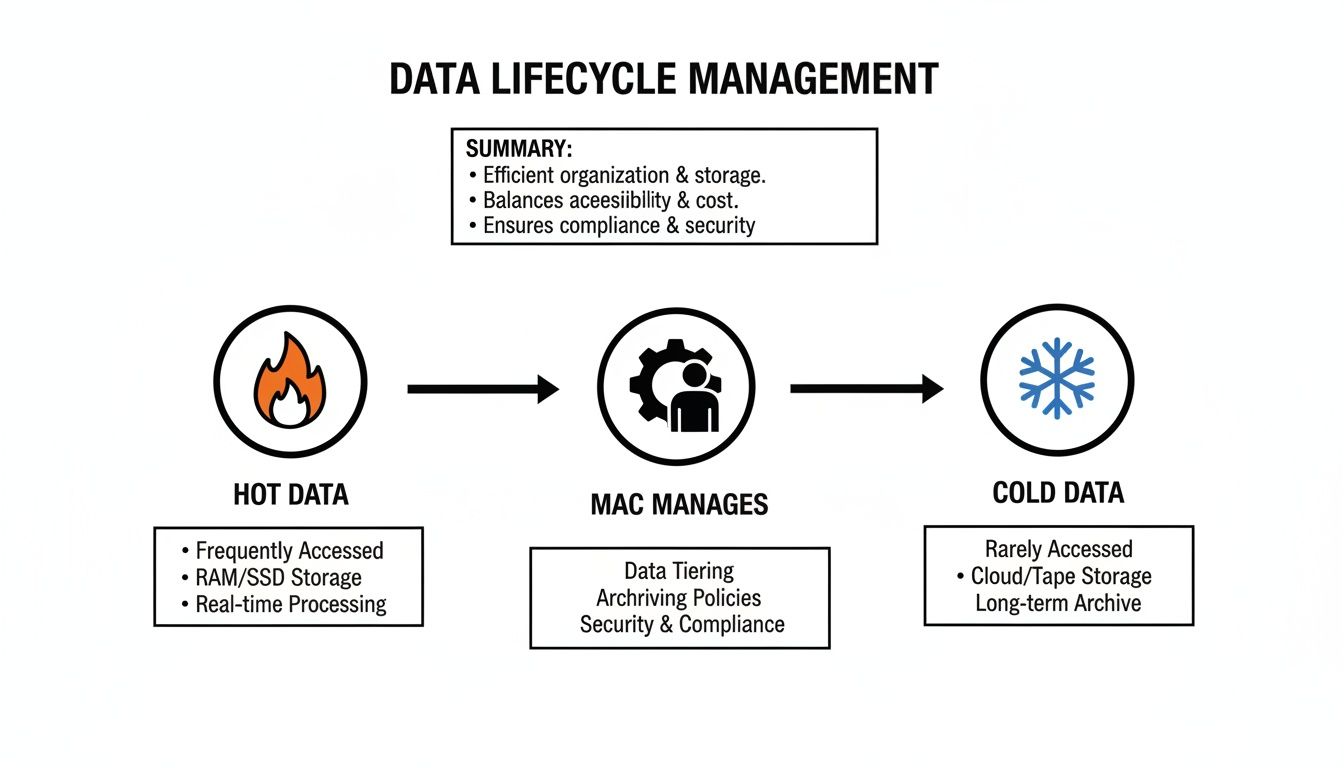
As the diagram shows, your Mac automatically moves frequently used files to the faster flash storage while shifting less-used data to the larger hard drive. It's all done seamlessly in the background.
But what about reliability? Since a Fusion Drive includes a mechanical hard drive, it's more vulnerable to damage from drops or bumps than a pure SSD. More importantly, macOS sees the two separate drives as a single logical volume. This means if either the SSD or the HDD component fails, you could lose everything. This fact alone makes a solid backup strategy absolutely non-negotiable for any Mac with a Fusion Drive.
Storage Showdown: Fusion Drive vs. SSD vs. HDD
To make the choice clearer, here’s a side-by-side look at how these three storage types stack up for a typical business user.
| Feature | Fusion Drive | SSD (Solid-State Drive) | HDD (Hard Disk Drive) |
|---|---|---|---|
| Speed | Good to Excellent. Fast for common tasks, slower for large, new files. | Excellent. The fastest option for booting, loading apps, and file transfers. | Fair. Noticeably slower, with longer wait times for most operations. |
| Capacity | High. Typically 1TB or more, offering plenty of space. | Varies. Lower capacities are affordable, but large drives are expensive. | Very High. Offers the most storage capacity for the lowest cost. |
| Cost | Moderate. A great balance of price, performance, and capacity. | High. The most expensive option, especially for high-capacity models. | Low. The most budget-friendly storage solution available. |
| Reliability | Fair. Has a mechanical part, and failure of one component affects the whole drive. | Excellent. No moving parts means it's highly durable and resistant to shock. | Good. Mature technology, but susceptible to physical damage and wear. |
| Best For | iMac and Mac mini users needing lots of space and snappy everyday performance. | Professionals who need maximum speed for demanding tasks like video editing. | Archiving, backups, and users with huge media libraries on a tight budget. |
Ultimately, the right choice depends entirely on your workflow and budget. Each has a clear place in the Mac ecosystem.
Is a Fusion Drive the Right Choice for You?
Figuring out the right storage for your Mac really boils down to two things: your day-to-day workflow and your budget. The Fusion Drive strikes a unique balance, but it’s definitely not a one-size-fits-all solution. Let's break down its technical abilities into real-world scenarios so you can see if this smart hybrid is the right fit for you.
A Fusion Drive really hits its stride for the everyday Mac user who needs a lot of storage space but also wants that snappy, responsive feel without paying a premium. Think of it as the perfect setup for families, students, or small businesses juggling huge media libraries alongside their daily apps.
If you’re storing thousands of photos, a massive music collection, or years of documents, but you spend most of your time in a web browser, email client, or office suite, a Fusion Drive will feel fantastic.
When a Fusion Drive Is the Perfect Fit
This storage solution shines in situations where you have a ton of data, but you don't need blazing-fast access to every single file all the time. It’s a cost-effective workhorse.
Here are a few scenarios where a Fusion Drive is a really smart choice:
- Budget-Conscious Creatives: A photographer or graphic designer who keeps a few active projects on the front burner but needs to archive terabytes of past work will love the balance here.
- General Business Use: For standard office tasks—accounting, client management, document creation—the drive keeps the essential apps snappy while offering plenty of room for all your records.
- The Family iMac: That central computer used for homework, browsing the web, and holding the family's entire library of photos and home videos is the perfect home for a Fusion Drive.
For a lot of people, a Fusion Drive delivers a near-SSD experience for 90% of their daily tasks. At the same time, it provides the kind of massive storage capacity that a similarly priced SSD just can't touch. It’s a practical compromise that saves money without a noticeable performance hit for most common jobs.
When a Pure SSD Is the Better Investment
On the other hand, there are definitely times when the consistent, top-tier performance of a pure Solid-State Drive is non-negotiable. If your work involves constantly reading and writing massive files, an SSD is simply the better tool for the job.
You should opt for a dedicated SSD if you are:
- A Professional Video Editor: Juggling 4K or 8K video streams demands sustained, ultra-high-speed data transfer that only an SSD can reliably deliver.
- A Software Developer: Compiling large projects or running virtual machines are I/O-intensive tasks that benefit hugely from the instant response of an SSD.
- A Power User with Demanding Workflows: Anyone working with large scientific datasets, complex 3D models, or high-resolution audio production will see a massive productivity boost from an all-flash setup.
Ultimately, the choice comes down to balancing speed and capacity. While SSDs get all the attention for performance, the need for affordable, high-capacity storage isn't going away. In fact, the global hard disk drive market was valued at USD 64.72 billion in 2025, and it's projected to climb to USD 112.66 billion by 2035—a compound annual growth rate of 5.7%. You can dig into more data on the hard disk market growth on Research Nester.
This trend shows that while speed is important, the need for affordable mass storage is as strong as ever, reinforcing the value of hybrid technologies like the Fusion Drive for the right user.
Managing And Upgrading Your Fusion Drive
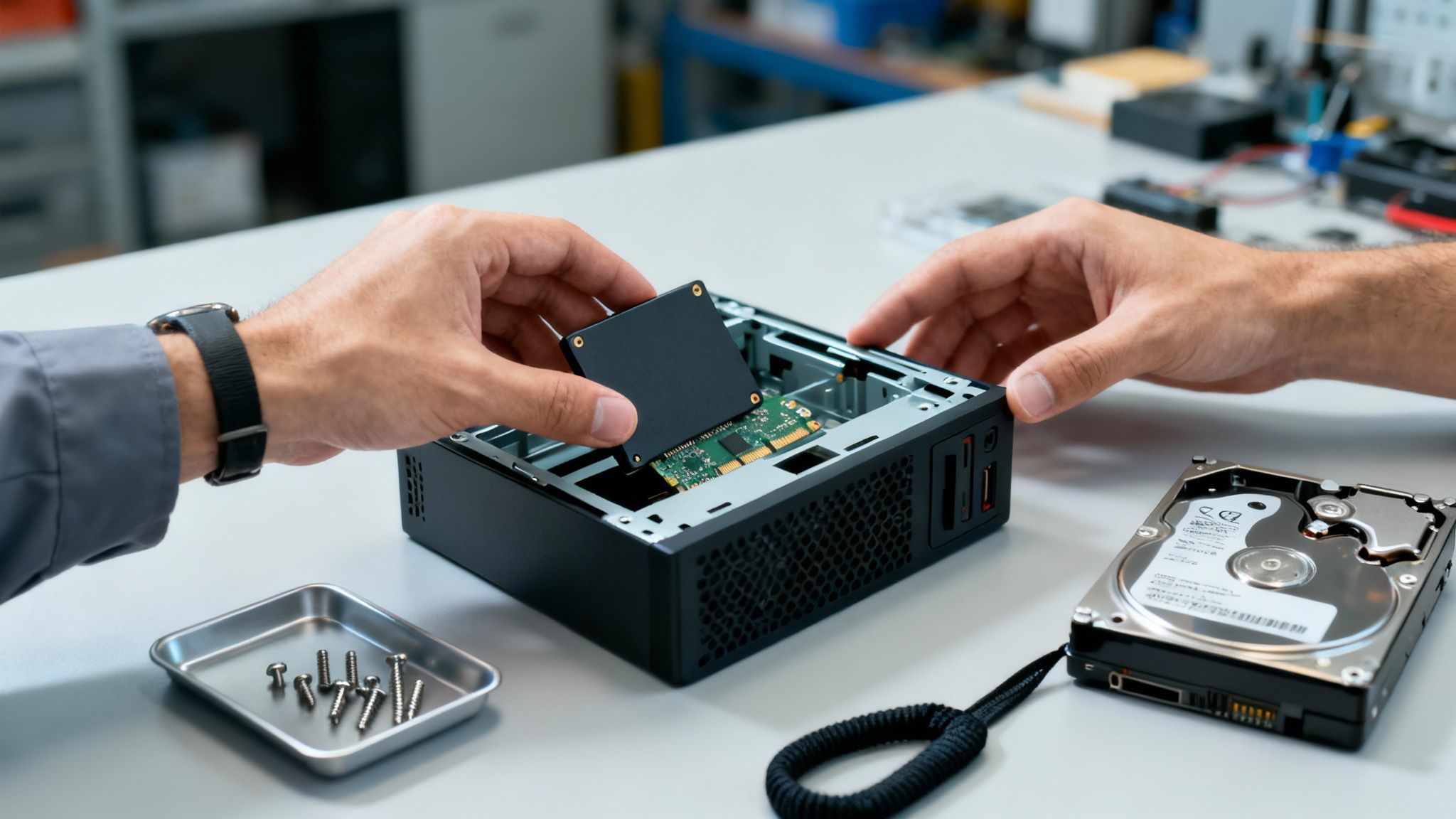
While a Fusion Drive cleverly balances speed and space, its two-in-one nature means you need to think a little differently about maintenance and upgrades. Knowing how to care for your drive will keep it running smoothly and help you decide when it's time for a more powerful solution.
First things first, let's confirm what you're working with. To check if your Mac has a Fusion Drive, just head to the Apple menu > "About This Mac" and click the "Storage" tab. If the drive is labeled "Fusion Drive," you've got one.
Basic Maintenance and Professional Upgrades
For everyday health checks, your Mac already has the perfect tool: Disk Utility. You can find it in your Applications folder (inside the Utilities folder). Running the "First Aid" function can spot and fix minor file system issues, which is a great starting point for any troubleshooting.
But when you're ready for a serious performance jump, the best path forward is to replace the entire Fusion Drive assembly with a single, large SSD. This move completely gets rid of the slower, mechanical hard drive, resulting in a massive boost in speed and reliability across the board.
Be warned, though: replacing a Fusion Drive isn't a simple swap. The process involves carefully separating the two original drives and migrating your data without any mistakes. One wrong move could mean permanent data loss. Because of this, we always recommend leaving this kind of hardware upgrade to the pros.
Trying to do this yourself, especially with critical business data at stake, is a huge gamble. An experienced technician has the specialized tools and knowledge to handle the upgrade safely, migrate your data flawlessly, and make sure your Mac is running better than ever. For other ways to get more out of your machine, take a look at our guide on how to optimize computer performance.
Even as SSDs become standard, the demand for massive storage capacity isn't going away. For example, the market for specialized 22TB hard drives is expected to hit USD 99 million by 2034, driven by enterprise needs for archiving massive amounts of data. This just goes to show that while SSDs are king for speed, high-capacity spinning drives still have their place.
Got Questions About Fusion Drives? We Have Answers
Even after getting the hang of how a Fusion Drive works, a few common questions always seem to surface. Let's tackle the most frequent ones I hear from clients.
Can You Actually Split a Fusion Drive?
You can, but you really, really shouldn't. Using a tool like Terminal, it's technically possible to break the Fusion Drive back into its two separate parts: the small SSD and the larger hard drive.
But why would you? The whole point of a Fusion Drive is that macOS handles the heavy lifting, automatically shuffling data between the two drives for you. Splitting them just leaves you with a tiny, quickly-filled SSD and a slow hard drive, forcing you to play traffic cop with your own files. It completely undoes the "magic" and is a headache for almost everyone.
What Happens If One of the Drives Fails?
This is the big one, and it's the Fusion Drive's Achilles' heel. Because macOS sees the SSD and the hard drive as a single, unified volume, if either drive dies, the whole thing goes down. You lose everything.
It's a single point of failure that can be catastrophic. If the SSD fails, you can't get data off the hard drive, and vice versa. This makes having a solid, consistent backup plan non-negotiable. Without one, a drive failure means your data is gone forever.
Does Apple Even Make These Anymore?
Nope. Apple has officially moved on. Newer iMacs, Mac minis, and MacBooks are all built with pure SSD storage now, which is faster and far more reliable.
You'll mostly find Fusion Drives in older iMac and Mac mini models, specifically those sold before 2021. This info is still critical for anyone using one of these machines or thinking about buying a refurbished one. And when that drive eventually gives up the ghost, remember that properly disposing of it through secure hard drive shredding is the only way to ensure your old data stays private.
Keep your business running without IT headaches.
GT Computing provides fast, reliable support for both residential and business clients. Whether you need network setup, data recovery, or managed IT services, we help you stay secure and productive.
Contact us today for a free consultation.
Call 203-804-3053 or email Dave@gtcomputing.com